> ## Documentation Index
> Fetch the complete documentation index at: https://docs.bethelchms.com/llms.txt
> Use this file to discover all available pages before exploring further.
# Invite your team
> Send invitations to pastors, branch admins, finance users, and editors so they can help manage your church in Bethel ChMS.
Now that your church is set up, invite the people who'll help manage it. Each person you invite gets a specific role that controls what they can see and do in Bethel ChMS.
In the sidebar, click **Users**. This opens the user management page where you can see everyone who has access to your organisation and send new invitations.
Click **Invite User** and fill in the form:
| Field | Required | Notes |
| ---------- | --------- | ------------------------------------------------------------------------------------------------------ |
| **Email** | Yes | The email address where the invitation will be sent. |
| **Name** | Yes | The person's display name in Bethel ChMS. |
| **Role** | Yes | Choose from **Org Admin**, **Branch Admin**, **Editor**, or **Treasurer**, depending on your own role. |
| **Branch** | Sometimes | Required when you select a branch-scoped role: **Branch Admin**, **Editor**, or **Treasurer**. |
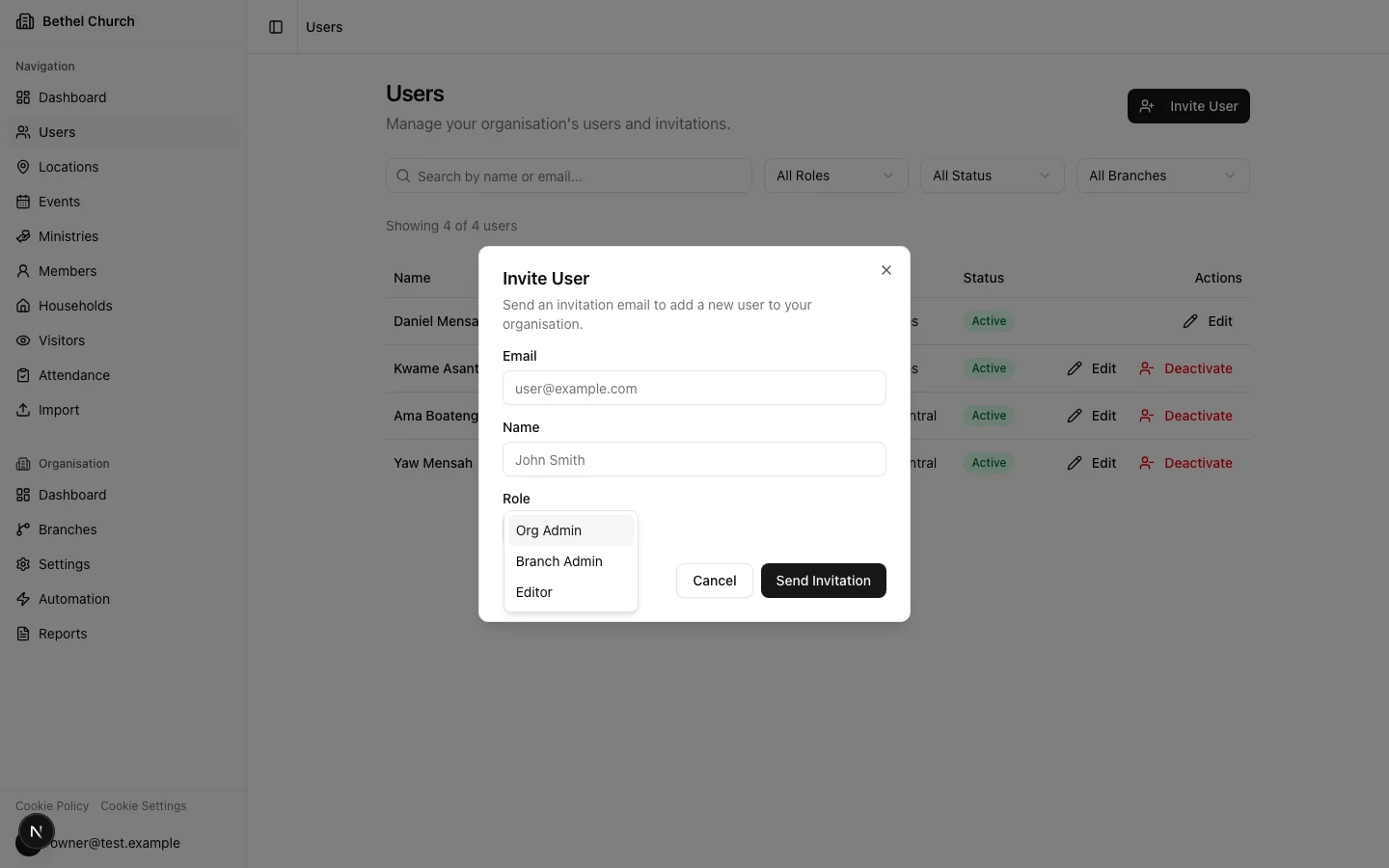 Click **Send Invitation**. Bethel ChMS sends the invitee an email with a link they can use to accept.
Not sure which role to pick? Here's a quick summary:
* **Org Admin:** Organisation-level access across every branch. Good for senior pastors or headquarters staff who oversee the whole network.
* **Branch Admin:** Manages members, attendance, and events for a specific branch. Ideal for local pastors or office managers.
* **Editor:** Can add and update records within a branch but cannot change settings or invite others.
* **Treasurer:** Can access **Gifting & Donations** for one branch, without access to members, events, or other branch data.
For a full breakdown of what each role can do, see [Roles and permissions](/guides/roles-and-permissions).
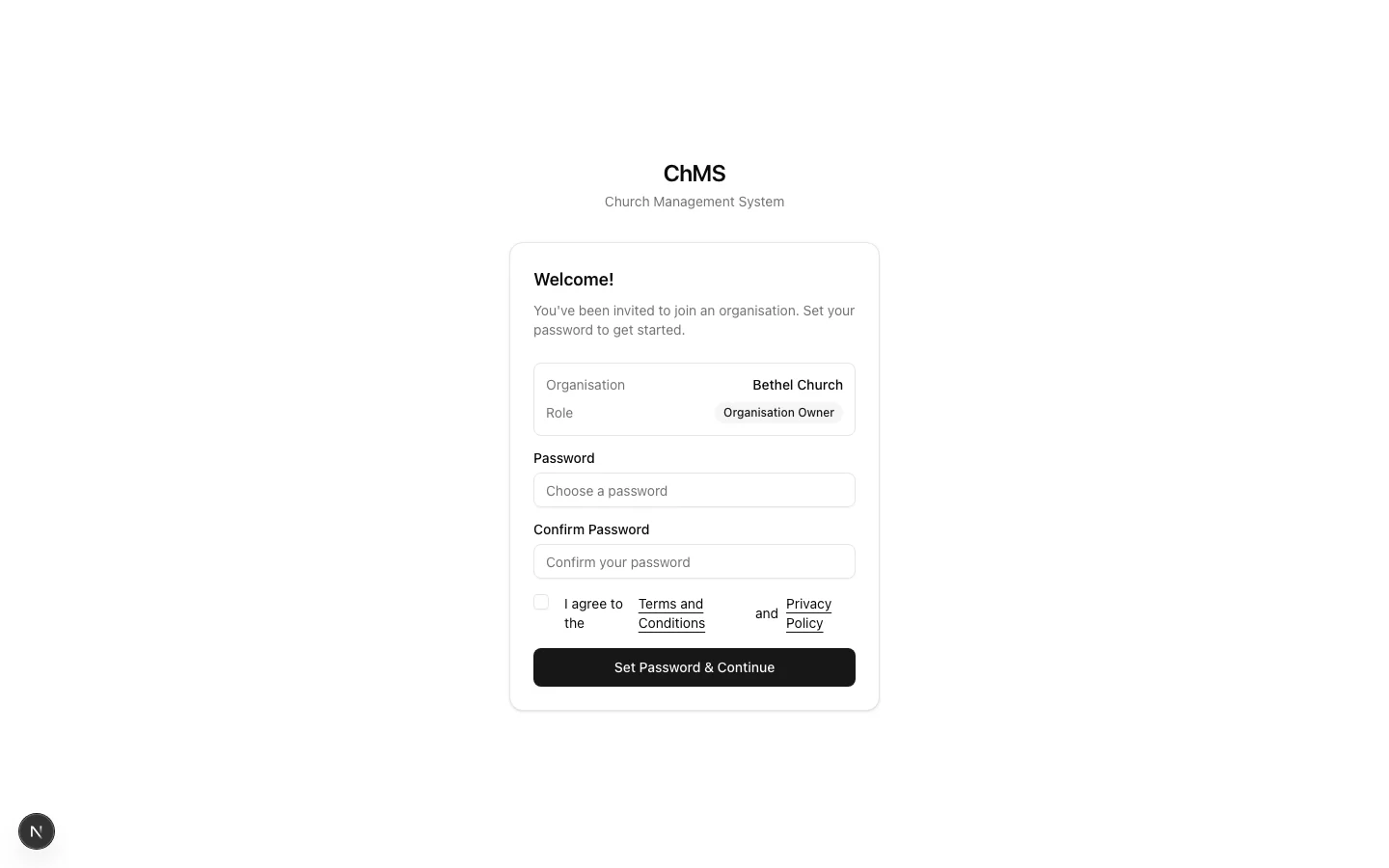
The invitee receives an email with a magic link. When they click it, they land on the **Accept invitation** page, which shows:
* The name of your organisation
* The role they've been assigned
* The branch they belong to, if their role is branch-scoped
They set a password (minimum 8 characters) and they're in. No extra setup required on their end.
Click **Send Invitation**. Bethel ChMS sends the invitee an email with a link they can use to accept.
Not sure which role to pick? Here's a quick summary:
* **Org Admin:** Organisation-level access across every branch. Good for senior pastors or headquarters staff who oversee the whole network.
* **Branch Admin:** Manages members, attendance, and events for a specific branch. Ideal for local pastors or office managers.
* **Editor:** Can add and update records within a branch but cannot change settings or invite others.
* **Treasurer:** Can access **Gifting & Donations** for one branch, without access to members, events, or other branch data.
For a full breakdown of what each role can do, see [Roles and permissions](/guides/roles-and-permissions).
The invitee receives an email with a magic link. When they click it, they land on the **Accept invitation** page, which shows:
* The name of your organisation
* The role they've been assigned
* The branch they belong to, if their role is branch-scoped
They set a password (minimum 8 characters) and they're in. No extra setup required on their end.
 **Who can invite whom:**
* **Org Owner** can invite **Org Admin**, **Branch Admin**, **Editor**, and **Treasurer**.
* **Org Admin** can invite **Org Admin**, **Branch Admin**, **Editor**, and **Treasurer**.
* **Branch Admin** can invite **Branch Admin** and **Editor** within their own branch.
* **Editor** cannot invite anyone.
* **Treasurer** cannot invite anyone.
Invitations expire after 7 days. If someone misses theirs, go back to the **Users** page and resend it.
## Manage invitations and users
Use the **Users** page to search users, filter by role, filter by status, and resend pending invitations. Org-scoped users can also filter by **All Branches** or a specific branch.
For the full user management workflow, see [User management](/guides/user-management).
## What to do next
Your team has access, time to start adding the people your church serves.
Add members, organize them by branch, and keep your church directory up to date.
**Who can invite whom:**
* **Org Owner** can invite **Org Admin**, **Branch Admin**, **Editor**, and **Treasurer**.
* **Org Admin** can invite **Org Admin**, **Branch Admin**, **Editor**, and **Treasurer**.
* **Branch Admin** can invite **Branch Admin** and **Editor** within their own branch.
* **Editor** cannot invite anyone.
* **Treasurer** cannot invite anyone.
Invitations expire after 7 days. If someone misses theirs, go back to the **Users** page and resend it.
## Manage invitations and users
Use the **Users** page to search users, filter by role, filter by status, and resend pending invitations. Org-scoped users can also filter by **All Branches** or a specific branch.
For the full user management workflow, see [User management](/guides/user-management).
## What to do next
Your team has access, time to start adding the people your church serves.
Add members, organize them by branch, and keep your church directory up to date.