> ## Documentation Index
> Fetch the complete documentation index at: https://docs.bethelchms.com/llms.txt
> Use this file to discover all available pages before exploring further.
# Branch management
> Create, duplicate, copy, edit, and manage branches across your multi-site church network in Bethel ChMS.
Branch management is where org-level administrators set up and maintain the branches that make up a multi-site church network. From here you can create new branches, duplicate existing ones, copy resources between branches, and manage branch details.
**Who can do this:** **Org Owner** and **Org Admin** can create, edit, duplicate, and copy branch resources. Only **Org Owner** can delete a branch. **Branch Admins** can edit their own branch's details but cannot create, duplicate, copy, or delete branches.
## Creating a new branch
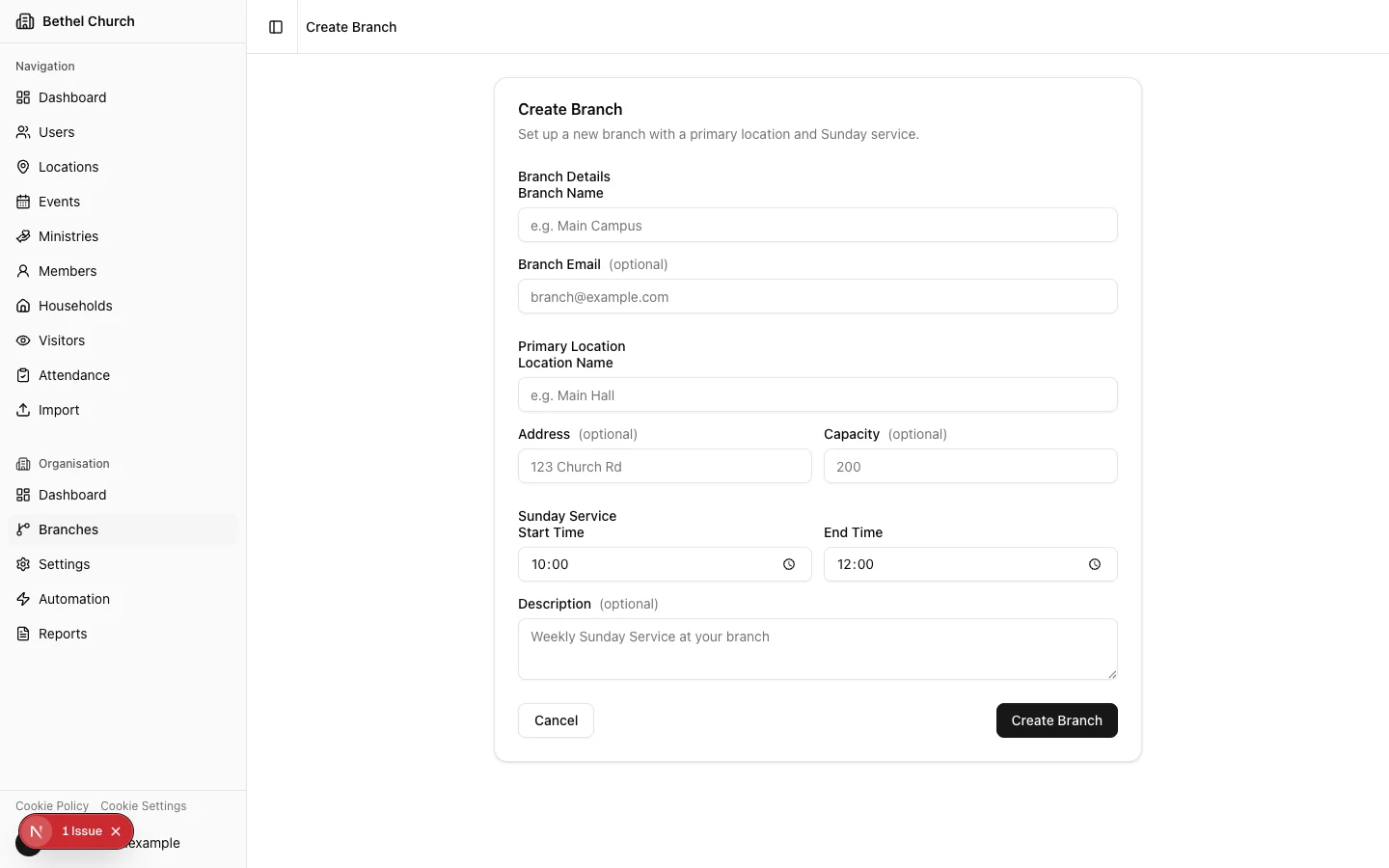
In the **Organisation** section of the sidebar, click **Branches**, then click **Create Branch**.
Enter the **Branch Name**. It must be unique within your organisation. You can also enter an optional **Branch Email**.
Enter the **Location Name**. You can also fill in optional fields: **Address** and **Capacity**.
Set the **Start Time**, **End Time**, and optional **Description** for the branch's Sunday Service.
Click **Create Branch**. Bethel ChMS provisions the branch with its primary location, a Sunday Service event, and 52 weekly occurrences.
If your organisation uses annual billing, Bethel ChMS may show a **Confirm branch addition** dialog with the estimated prorated charge before it creates the branch.
Everything is set up in one step. You don't need to create the location or Sunday Service separately.
 ## Duplicating a branch
Duplicating lets you create up to 10 new branches at once, using an existing branch as a template. This is useful when you're launching multiple new locations with a similar setup.
From the Branches list, open the context menu on the branch you want to use as a template and select **Duplicate Branch**.
Select the number of branches to create (1 to 10).
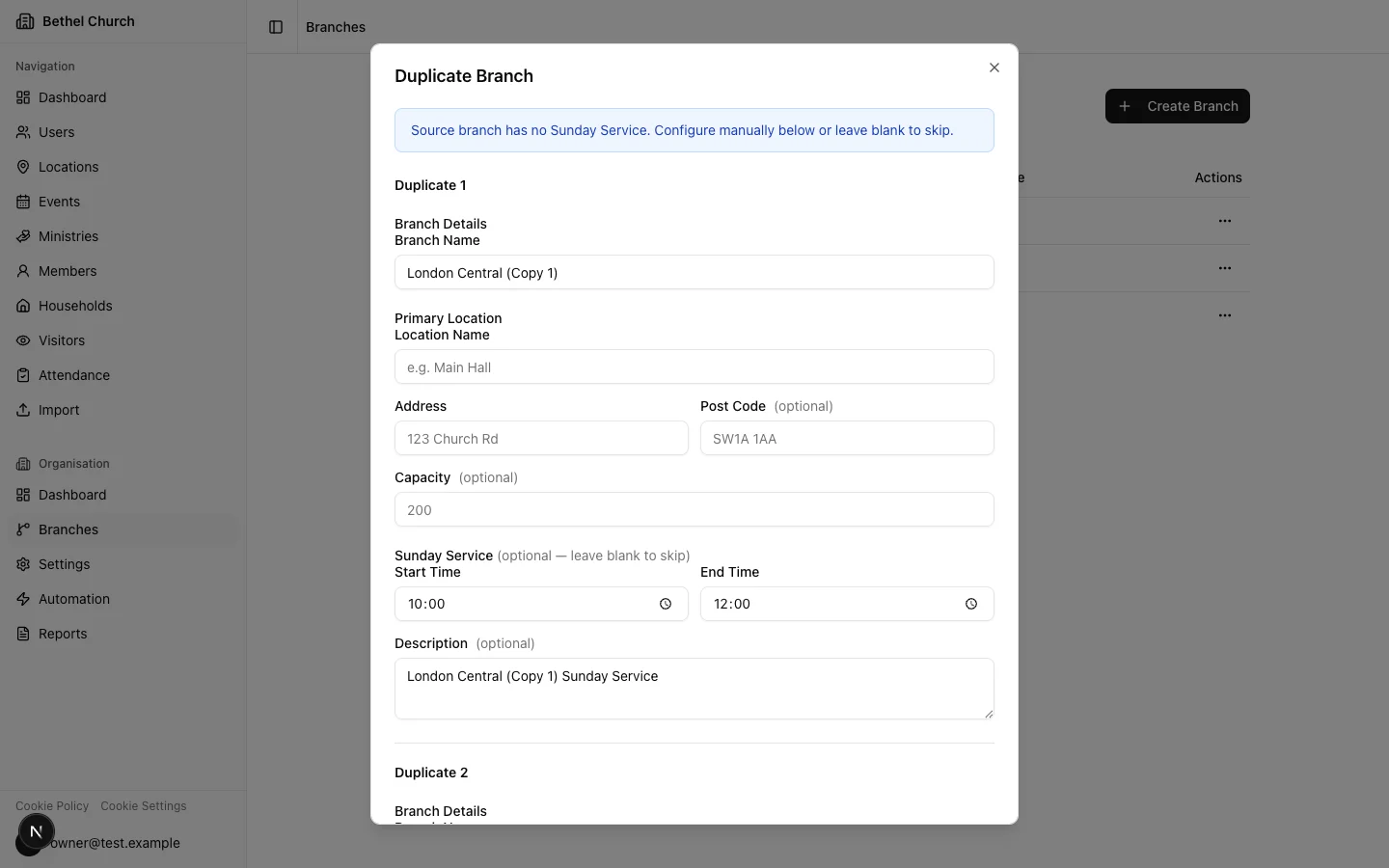
For each copy, fill in the **Branch name** and location details: **Location name**, **Address**, and **Capacity**. You can also configure **Sunday Service** times and description for each branch.
Optionally, select which additional events from the source branch you'd like to clone into the new branches.
Review the summary and click **Duplicate**.
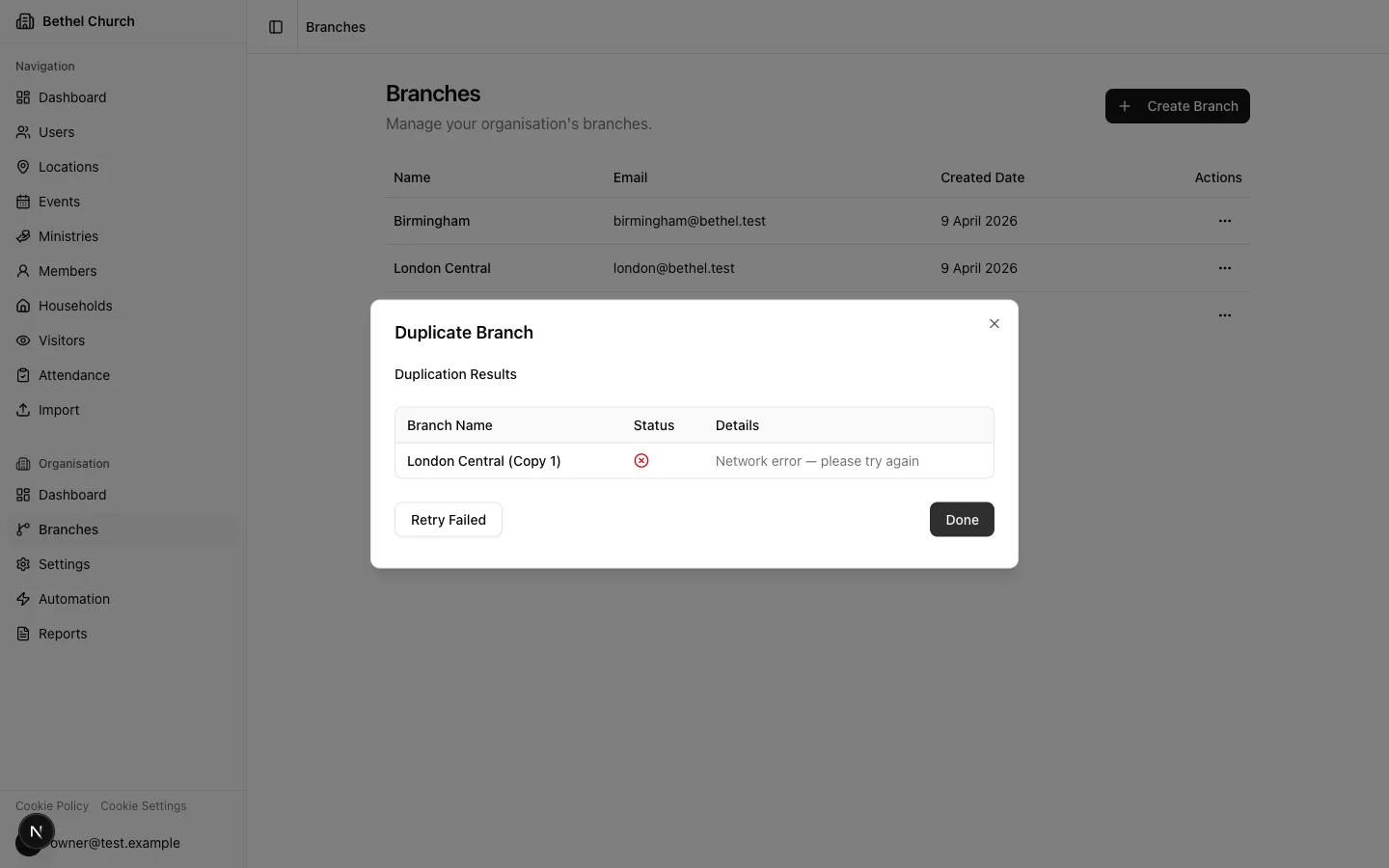
The results screen shows the status of each branch (success or failure). If any branches failed to create, use the **Retry Failed** button to try again.
## Duplicating a branch
Duplicating lets you create up to 10 new branches at once, using an existing branch as a template. This is useful when you're launching multiple new locations with a similar setup.
From the Branches list, open the context menu on the branch you want to use as a template and select **Duplicate Branch**.
Select the number of branches to create (1 to 10).
For each copy, fill in the **Branch name** and location details: **Location name**, **Address**, and **Capacity**. You can also configure **Sunday Service** times and description for each branch.
Optionally, select which additional events from the source branch you'd like to clone into the new branches.
Review the summary and click **Duplicate**.
The results screen shows the status of each branch (success or failure). If any branches failed to create, use the **Retry Failed** button to try again.
 ### What gets duplicated
**Included:** Primary location (with your configured details), Sunday Service event (if configured, with 52 occurrences), any additional events you selected (with their occurrences), and all active ministries (name, description, and status only).
**Not included:** Members, visitors, attendance records, user accounts, or ministry member assignments.
Duplicated branches start empty of people. You'll need to add members, invite users, and assign ministry rosters separately.
## Copying resources between branches
Copy events, locations, or ministries from one branch to one or more target branches without duplicating the entire branch.
From the Branches list, open the context menu on the source branch and select **Copy Resources**.
Choose the branches you want to copy resources into.
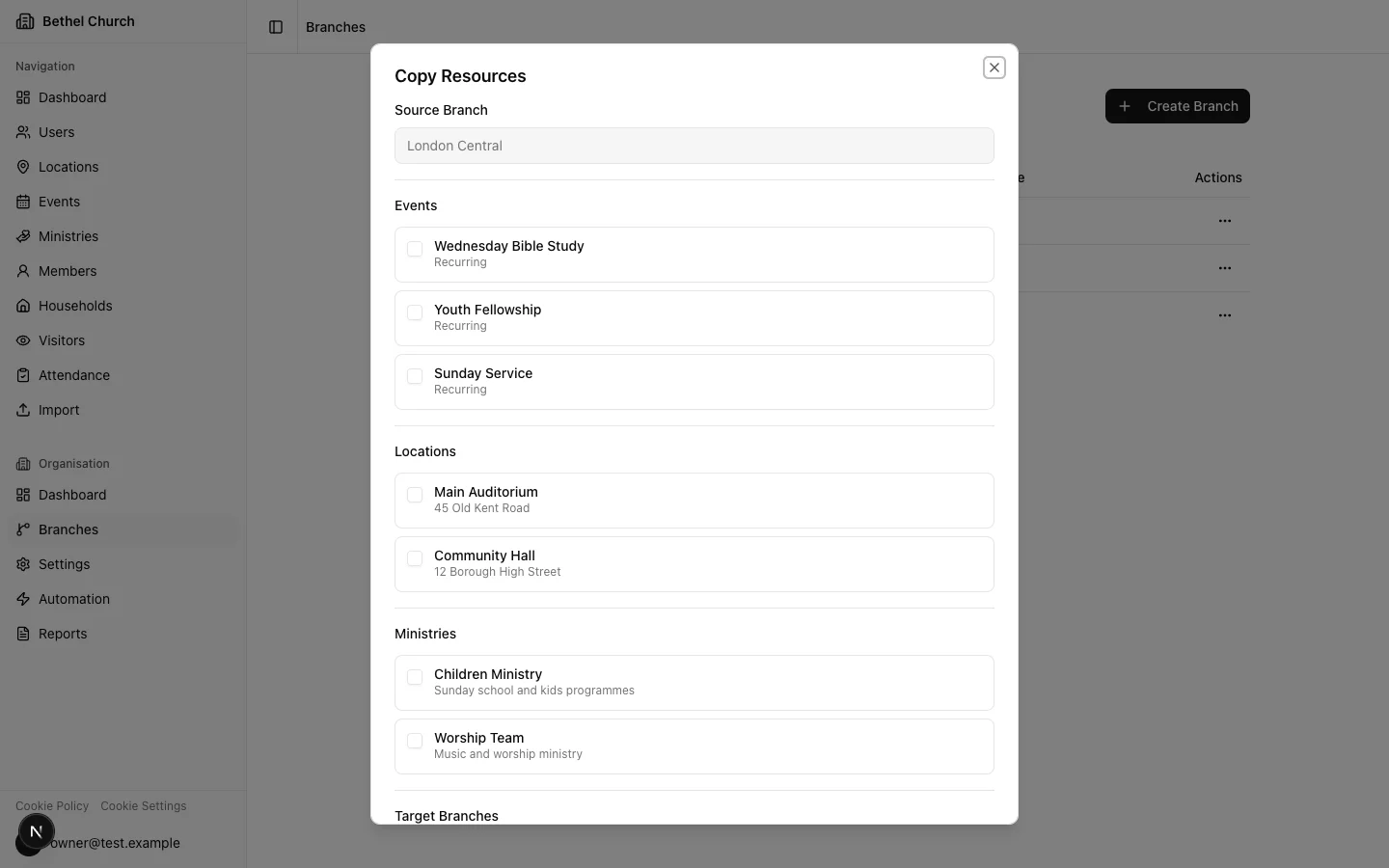
Select the resource types you'd like to copy: **events**, **locations**, **ministries**, or any combination.
Review the summary and confirm to start the copy.
Copied events use the target branch's primary location. Copied locations are never set as the primary location. Copied ministries include name, description, and status only, with no member assignments.
### What gets duplicated
**Included:** Primary location (with your configured details), Sunday Service event (if configured, with 52 occurrences), any additional events you selected (with their occurrences), and all active ministries (name, description, and status only).
**Not included:** Members, visitors, attendance records, user accounts, or ministry member assignments.
Duplicated branches start empty of people. You'll need to add members, invite users, and assign ministry rosters separately.
## Copying resources between branches
Copy events, locations, or ministries from one branch to one or more target branches without duplicating the entire branch.
From the Branches list, open the context menu on the source branch and select **Copy Resources**.
Choose the branches you want to copy resources into.
Select the resource types you'd like to copy: **events**, **locations**, **ministries**, or any combination.
Review the summary and confirm to start the copy.
Copied events use the target branch's primary location. Copied locations are never set as the primary location. Copied ministries include name, description, and status only, with no member assignments.
 ## Editing a branch
You can update a branch's **Name**, **Email**, and group label at any time. The branch name must remain unique within your organisation. **Branch Admins** can edit their own branch. **Org Owners** and **Org Admins** can edit any branch.
Org-level users may also see branch-level settings for **Gifting Categories** and **Activity Types** on a branch detail page. These settings control which organisation-level categories or activity types are active for that branch.
## Deleting a branch
Only the Org Owner can delete a branch. This action affects all data within that branch.
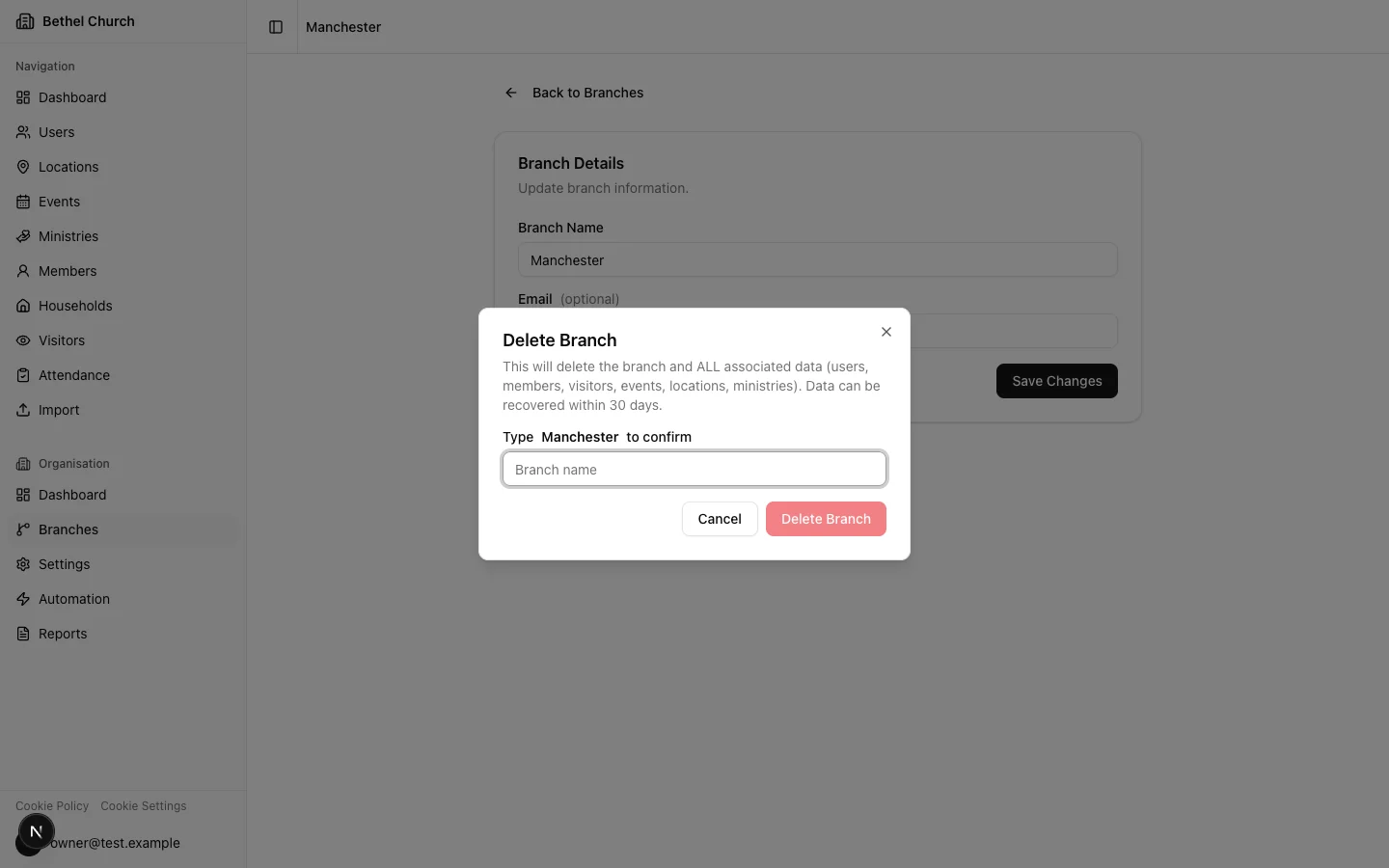
Deleting a branch is a soft delete. The branch and all of its associated data are hidden, including members, visitors, events, locations, ministries, and user accounts. You must type the branch name to confirm the deletion. Deleted branches can be recovered within 30 days before the data is permanently removed.
You cannot delete your organisation's only branch. Create another branch first if you need to remove the original one.
## Editing a branch
You can update a branch's **Name**, **Email**, and group label at any time. The branch name must remain unique within your organisation. **Branch Admins** can edit their own branch. **Org Owners** and **Org Admins** can edit any branch.
Org-level users may also see branch-level settings for **Gifting Categories** and **Activity Types** on a branch detail page. These settings control which organisation-level categories or activity types are active for that branch.
## Deleting a branch
Only the Org Owner can delete a branch. This action affects all data within that branch.
Deleting a branch is a soft delete. The branch and all of its associated data are hidden, including members, visitors, events, locations, ministries, and user accounts. You must type the branch name to confirm the deletion. Deleted branches can be recovered within 30 days before the data is permanently removed.
You cannot delete your organisation's only branch. Create another branch first if you need to remove the original one.
 ## Maximum branches
Your organisation has a branch limit. You cannot create or duplicate branches beyond this limit.
Contact BethelWare Software Ltd if you need to increase your branch limit.
## Maximum branches
Your organisation has a branch limit. You cannot create or duplicate branches beyond this limit.
Contact BethelWare Software Ltd if you need to increase your branch limit.