> ## Documentation Index
> Fetch the complete documentation index at: https://docs.bethelchms.com/llms.txt
> Use this file to discover all available pages before exploring further.
# Managing events and locations
> Create one-off and recurring events, manage occurrences, and set up locations for your branch in Bethel ChMS.
Events in Bethel ChMS represent scheduled activities like services, Bible studies, or outreach programs. Each event happens at a location, and every event has one or more occurrences that you can manage individually. This page covers how to create and manage both events and locations.
**Who can do this:** Org Owner, Org Admin, Branch Admin, and Editor can create and edit events and locations. Org Owner, Org Admin, and Branch Admin can delete. Editors cannot delete.
Org-scoped users can switch branches before creating or editing branch records. Branch-scoped users work in their assigned branch.
## Events
### Creating a one-off event
A one-off event is a single scheduled activity with exactly one occurrence, such as a guest speaker visit or a special community outreach day.
In the sidebar, click **Events** to open the events list for your branch.
Click the **Add Event** button to open the new event dialog.
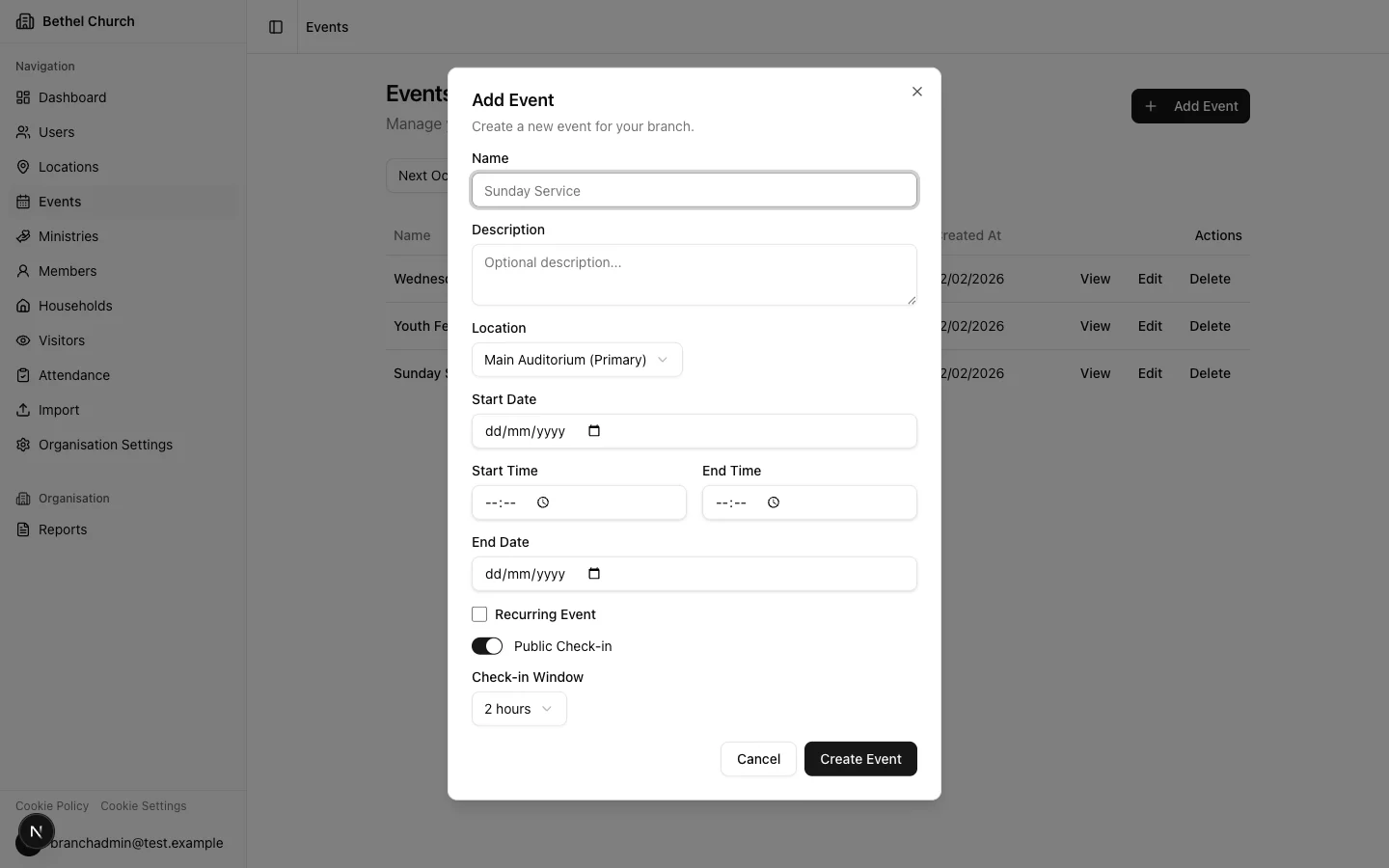
Enter the required fields: **Name**, **Location** (defaults to your branch's primary location), **Start Date**, **Start Time**, and **End Time**. You can also add an optional **Description**, **End Date**, and group link.
Leave **Public Check-in** turned on if people should check in through the event QR code. Choose a **Check-in Window** from 30 minutes to 8 hours.
Click **Create Event**. Bethel ChMS creates the event with a single occurrence automatically.
If your branch has groups, you can link the event to a group by choosing the group in the optional group field. Leave it as **None (open event)** for branch-wide events.
 ### Creating a recurring event
Recurring events are for activities that repeat on a regular schedule, such as weekly services or monthly prayer meetings.
In the sidebar, click **Events** to open the events list for your branch.
Click the **Add Event** button to open the new event dialog.
Enter the required fields: **Name**, **Location**, **Start Date**, **Start Time**, and **End Time**. Add an optional **Description** if needed.
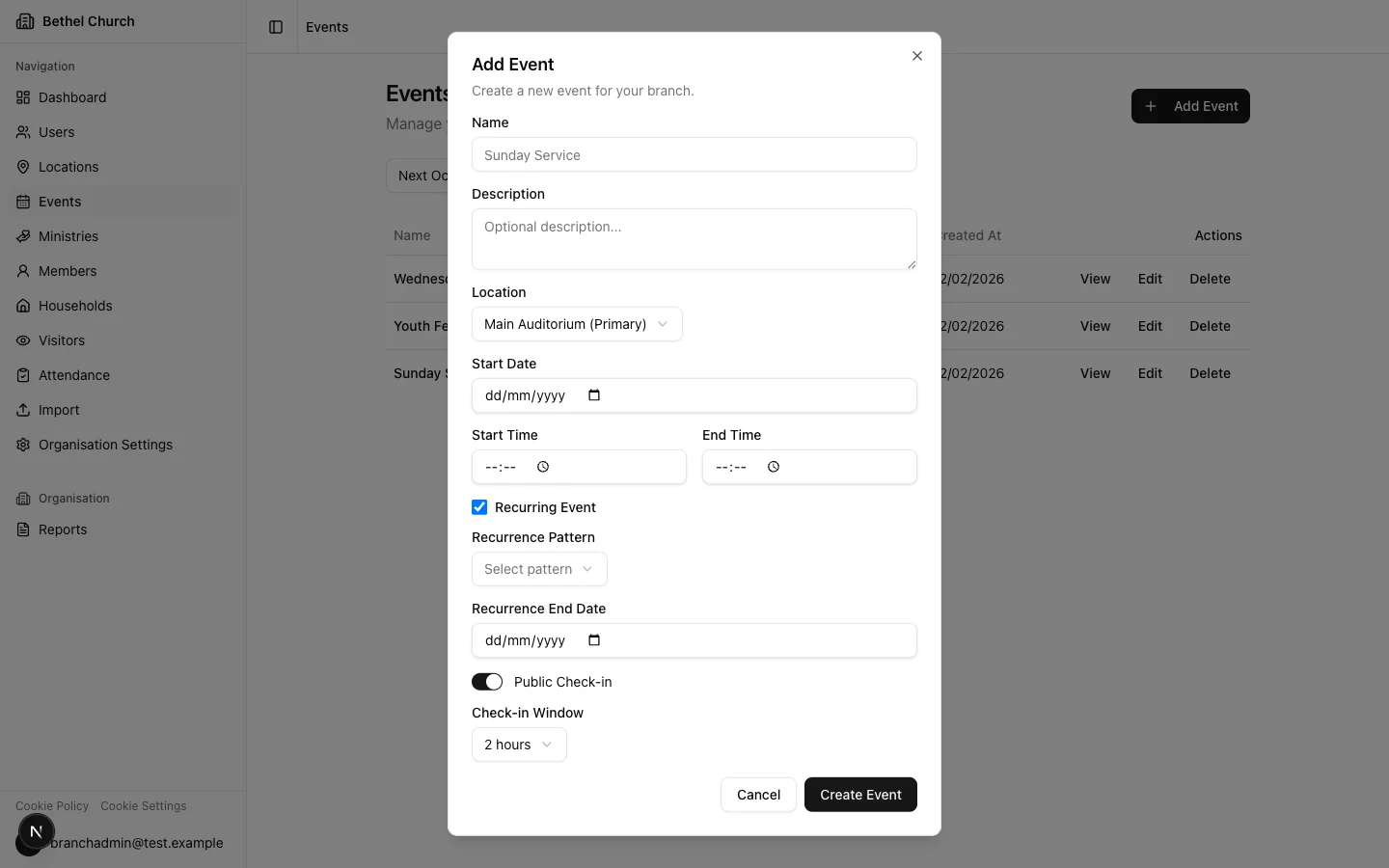
Tick **Recurring Event**. Choose a **Recurrence Pattern**: **Daily**, **Weekly**, **Bi-Weekly**, or **Monthly**. Set the **Recurrence End Date**.
Leave **Public Check-in** turned on if people should check in through the event QR code. Choose a **Check-in Window** from 30 minutes to 8 hours.
Click **Create Event**. Bethel ChMS generates occurrences based on your chosen pattern.
### Creating a recurring event
Recurring events are for activities that repeat on a regular schedule, such as weekly services or monthly prayer meetings.
In the sidebar, click **Events** to open the events list for your branch.
Click the **Add Event** button to open the new event dialog.
Enter the required fields: **Name**, **Location**, **Start Date**, **Start Time**, and **End Time**. Add an optional **Description** if needed.
Tick **Recurring Event**. Choose a **Recurrence Pattern**: **Daily**, **Weekly**, **Bi-Weekly**, or **Monthly**. Set the **Recurrence End Date**.
Leave **Public Check-in** turned on if people should check in through the event QR code. Choose a **Check-in Window** from 30 minutes to 8 hours.
Click **Create Event**. Bethel ChMS generates occurrences based on your chosen pattern.
 Bethel ChMS generates up to 52 occurrences when it creates or regenerates a recurring event.
The codebase does not currently register an automatic job that extends the series beyond those generated occurrences.
### Filtering and sorting events
Use the event list to sort events by **Name**, **Start Date**, **Location**, or **Created At**. You can also filter by scope:
* **All events** shows every event for the selected branch.
* **Branch-wide only** shows events that are not linked to a group.
* **Group only** shows events linked to a group. The label uses your branch's configured group type name.
### Understanding occurrences
Every event in Bethel ChMS has one or more **occurrences**. A one-off event has exactly one occurrence, while a recurring event has many. Each occurrence has its own date, time, location, and status.
Attendance is always recorded against a specific occurrence, not the event itself. This means you can track who attended each individual service or meeting, even when it's part of a recurring series.
### Editing a recurring event
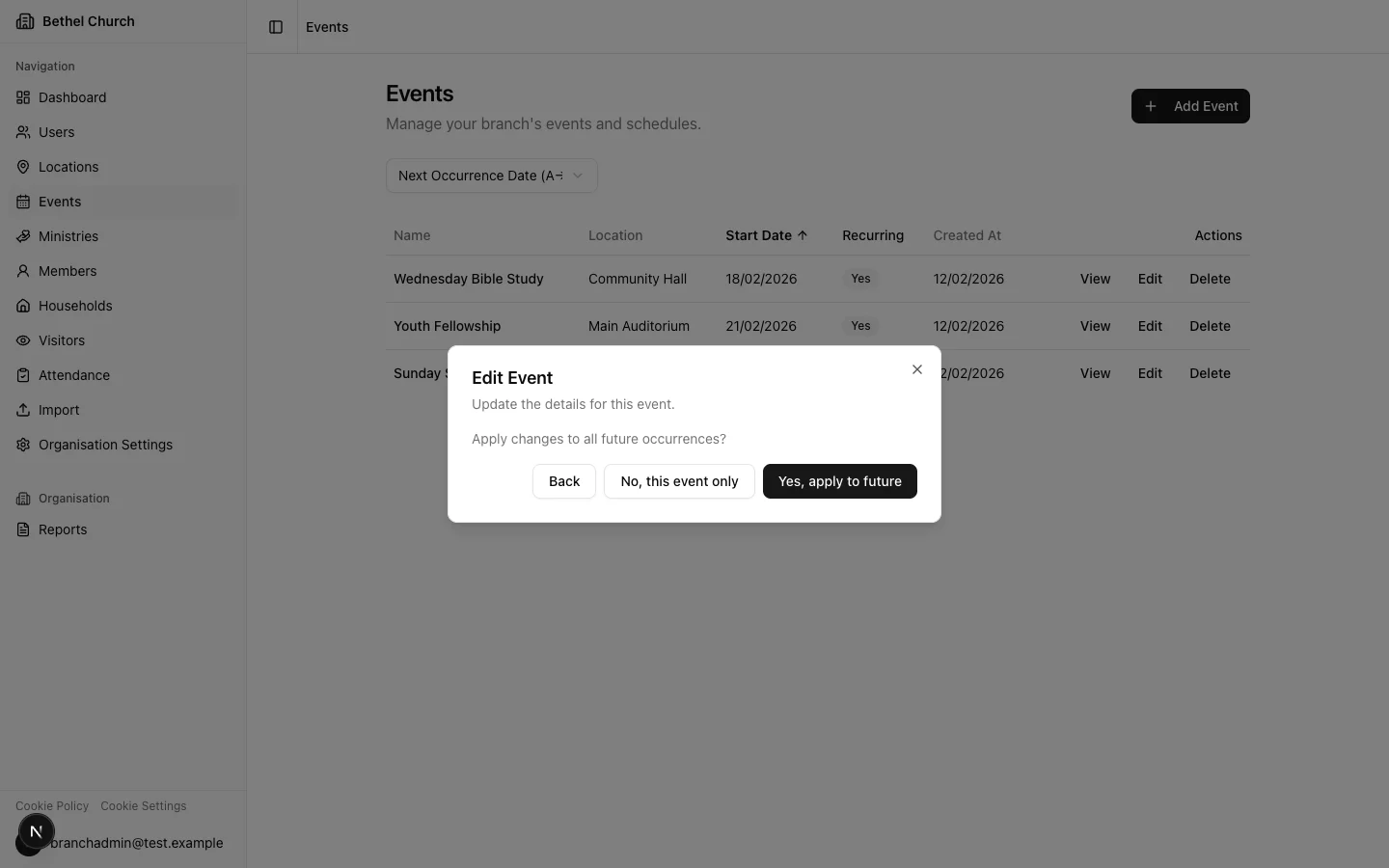
When you edit a recurring event, Bethel ChMS asks whether to **Yes, apply to future** or **No, this event only**. Use **Yes, apply to future** when the change should update future occurrences in the series.
If you choose **No, this event only**, Bethel ChMS updates the event record but does not change any existing occurrence rows. Existing occurrence dates, times, statuses, cancellations, reschedules, and location overrides remain unchanged.
Bethel ChMS generates up to 52 occurrences when it creates or regenerates a recurring event.
The codebase does not currently register an automatic job that extends the series beyond those generated occurrences.
### Filtering and sorting events
Use the event list to sort events by **Name**, **Start Date**, **Location**, or **Created At**. You can also filter by scope:
* **All events** shows every event for the selected branch.
* **Branch-wide only** shows events that are not linked to a group.
* **Group only** shows events linked to a group. The label uses your branch's configured group type name.
### Understanding occurrences
Every event in Bethel ChMS has one or more **occurrences**. A one-off event has exactly one occurrence, while a recurring event has many. Each occurrence has its own date, time, location, and status.
Attendance is always recorded against a specific occurrence, not the event itself. This means you can track who attended each individual service or meeting, even when it's part of a recurring series.
### Editing a recurring event
When you edit a recurring event, Bethel ChMS asks whether to **Yes, apply to future** or **No, this event only**. Use **Yes, apply to future** when the change should update future occurrences in the series.
If you choose **No, this event only**, Bethel ChMS updates the event record but does not change any existing occurrence rows. Existing occurrence dates, times, statuses, cancellations, reschedules, and location overrides remain unchanged.
 ### Managing a single occurrence
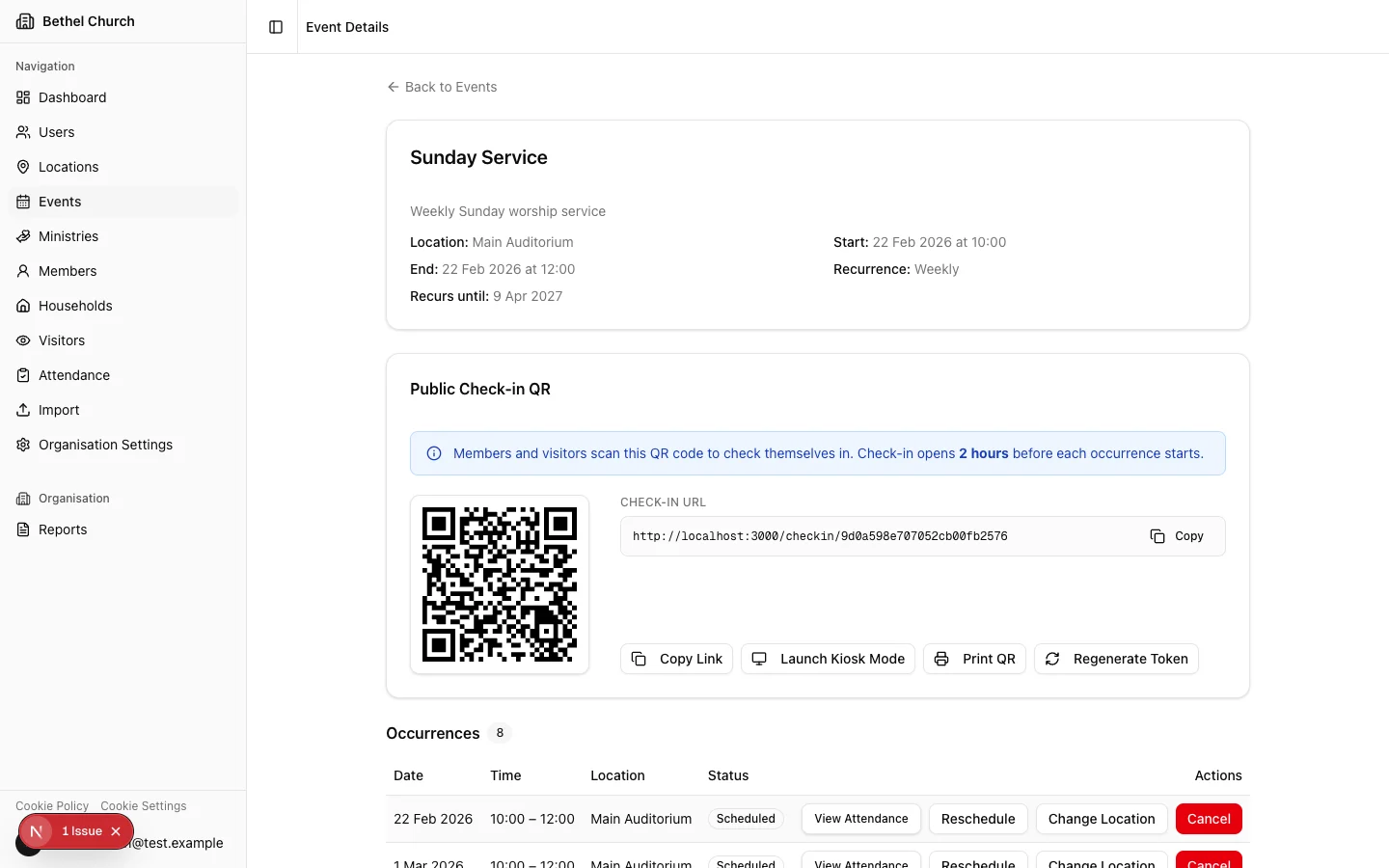
You can manage individual occurrences without affecting the rest of the series. Open the occurrence from the event detail page to see the following actions:
* **Reschedule:** Change the date or time of the occurrence. The occurrence is marked as **Rescheduled** so your team can see it was moved.
* **Change location:** Override the default location for this occurrence. Choose **Same as event** to revert back to the event's default location.
* **Cancel:** Mark the occurrence as **Cancelled**. Once cancelled, attendance recording and other actions are disabled for that occurrence.
* **View Attendance:** Open the attendance page for that occurrence.
### Managing a single occurrence
You can manage individual occurrences without affecting the rest of the series. Open the occurrence from the event detail page to see the following actions:
* **Reschedule:** Change the date or time of the occurrence. The occurrence is marked as **Rescheduled** so your team can see it was moved.
* **Change location:** Override the default location for this occurrence. Choose **Same as event** to revert back to the event's default location.
* **Cancel:** Mark the occurrence as **Cancelled**. Once cancelled, attendance recording and other actions are disabled for that occurrence.
* **View Attendance:** Open the attendance page for that occurrence.
 ### Deleting an event
Org Owner, Org Admin, and Branch Admin can delete events. Editors do not have permission to delete.
Deleting an event removes the event and all of its occurrences from view. Any attendance records that were previously recorded against the event's occurrences are preserved and remain accessible in attendance reports.
## Public check-in
Each event has a **Public Check-in QR** section on the event detail page when public check-in is enabled. Use it to display or print the event QR code for attendees. To learn more about attendance options, see [Record attendance](/guides/recording-attendance).
## Change history
The event detail page includes a **Change History** tab. Use it to review changes to event details such as **Name**, **Description**, **Location**, date and time fields, recurrence settings, and group assignment.
## Locations
### What is a location?
A **location** is a physical venue where your branch holds events, such as a main auditorium, a community hall, or an outdoor space. Every branch has a primary location that is created during initial setup.
### Creating a location
In the sidebar, click **Locations** to open the locations list for your branch.
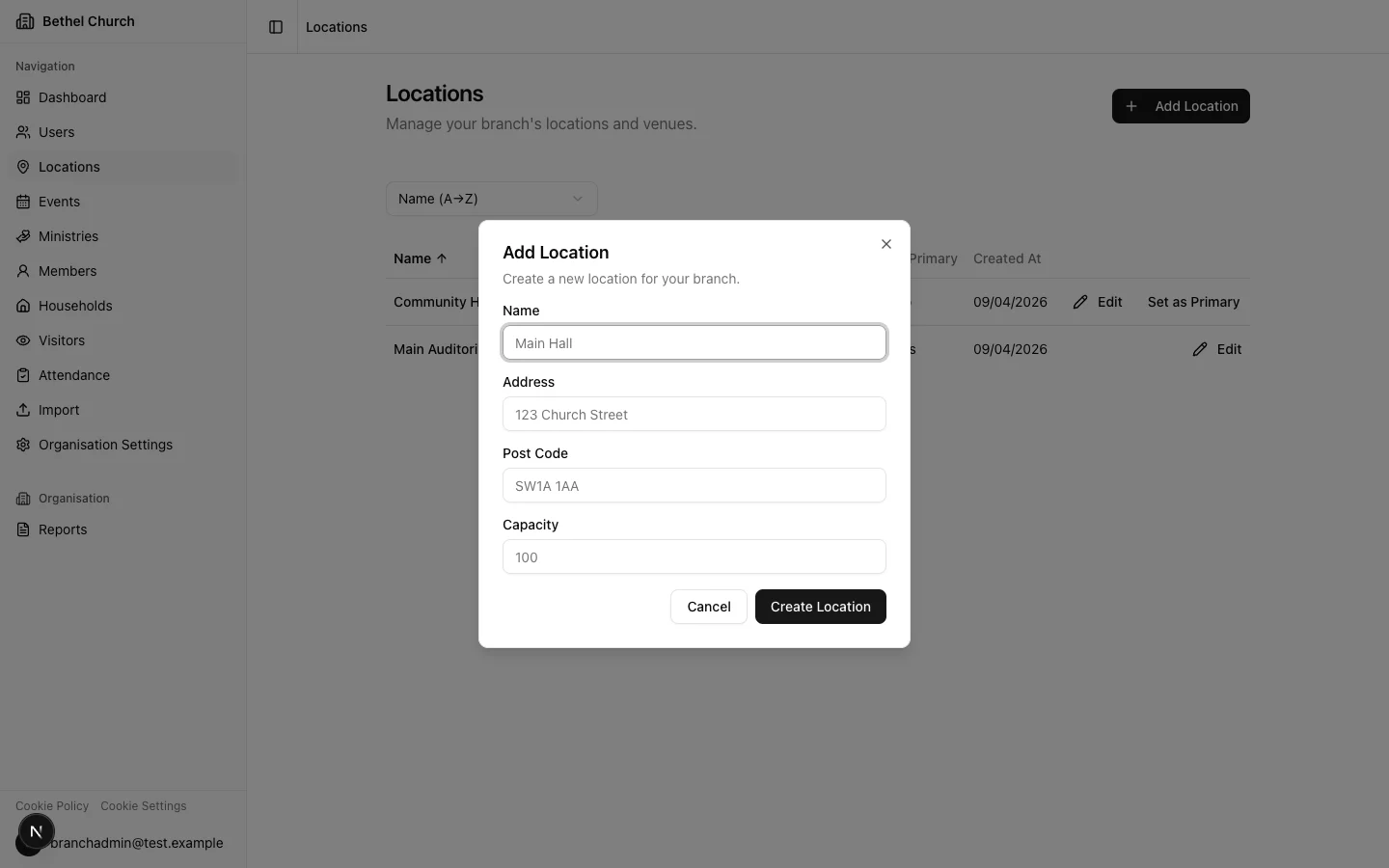
Click the **Add Location** button to open the new location dialog.
Enter the required field: **Name**. You can also fill in optional fields: **Address**, **Post Code**, and **Capacity**.
Click **Create Location**. The new location is now available when creating or editing events.
### Deleting an event
Org Owner, Org Admin, and Branch Admin can delete events. Editors do not have permission to delete.
Deleting an event removes the event and all of its occurrences from view. Any attendance records that were previously recorded against the event's occurrences are preserved and remain accessible in attendance reports.
## Public check-in
Each event has a **Public Check-in QR** section on the event detail page when public check-in is enabled. Use it to display or print the event QR code for attendees. To learn more about attendance options, see [Record attendance](/guides/recording-attendance).
## Change history
The event detail page includes a **Change History** tab. Use it to review changes to event details such as **Name**, **Description**, **Location**, date and time fields, recurrence settings, and group assignment.
## Locations
### What is a location?
A **location** is a physical venue where your branch holds events, such as a main auditorium, a community hall, or an outdoor space. Every branch has a primary location that is created during initial setup.
### Creating a location
In the sidebar, click **Locations** to open the locations list for your branch.
Click the **Add Location** button to open the new location dialog.
Enter the required field: **Name**. You can also fill in optional fields: **Address**, **Post Code**, and **Capacity**.
Click **Create Location**. The new location is now available when creating or editing events.
 ### The primary location
Each branch has exactly one primary location. When you create a new event, the location defaults to your branch's primary location. You can change which location is primary by selecting **Set Primary** on any other location.
You cannot delete the primary location. To delete it, first set another location as primary.
### Deleting a location
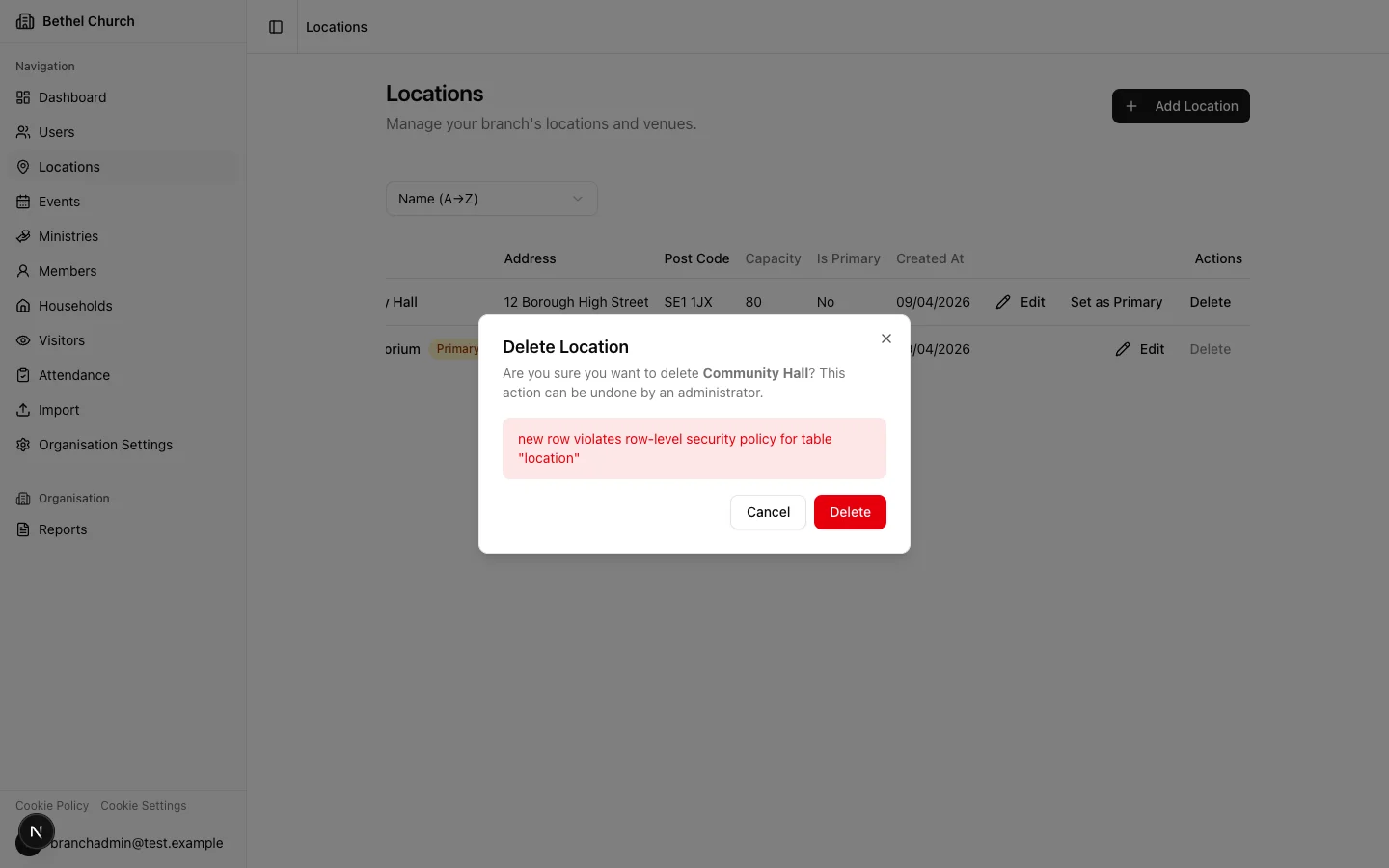
You cannot delete a location that is linked to future events, either directly or through event inheritance. If you attempt to delete a linked location, Bethel ChMS displays a list of the events that are still using it.
To delete a location that is linked to future events, first reassign those events to a different location.
### The primary location
Each branch has exactly one primary location. When you create a new event, the location defaults to your branch's primary location. You can change which location is primary by selecting **Set Primary** on any other location.
You cannot delete the primary location. To delete it, first set another location as primary.
### Deleting a location
You cannot delete a location that is linked to future events, either directly or through event inheritance. If you attempt to delete a linked location, Bethel ChMS displays a list of the events that are still using it.
To delete a location that is linked to future events, first reassign those events to a different location.
 ### Viewing location details and history
Open a location name from the **Locations** list to view its **Details** and **Change History** tabs. The details tab shows the branch, address, post code, capacity, and whether the location is primary.
### Viewing location details and history
Open a location name from the **Locations** list to view its **Details** and **Change History** tabs. The details tab shows the branch, address, post code, capacity, and whether the location is primary.