> ## Documentation Index
> Fetch the complete documentation index at: https://docs.bethelchms.com/llms.txt
> Use this file to discover all available pages before exploring further.
# Managing members and visitors
> Add, edit, filter, export, and manage members and visitors in Bethel ChMS, including statuses, duplicate checks, and visitor conversion.
Bethel ChMS tracks two types of people in your church: **members** and **visitors**. Members belong to your congregation. Visitors have attended but have not joined yet.
Use **Members** for your member directory, demographics, household links, group links, portal access, and member QR codes. Use **Visitors** for first-time and returning visitors, follow-up, and conversion to member records.
**Who can do this:** Org Owner, Org Admin, Branch Admin, and Editor can create and edit members and visitors in the app. Org Owner, Org Admin, and Branch Admin can delete them. Importing members is available to Org Owner, Org Admin, and Branch Admin. See [roles and permissions](/guides/roles-and-permissions) for your organisation's role model.
Related people-management guides:
* [Households](/guides/households)
* [Update campaigns](/guides/update-campaigns)
* [Groups](/guides/groups)
* [Importing members](/guides/importing-members)
* [Age groups](/guides/age-groups)
* [Tags](/guides/tags)
## Members
### Adding a member
In the sidebar, click **Members** to open the member list for your branch.
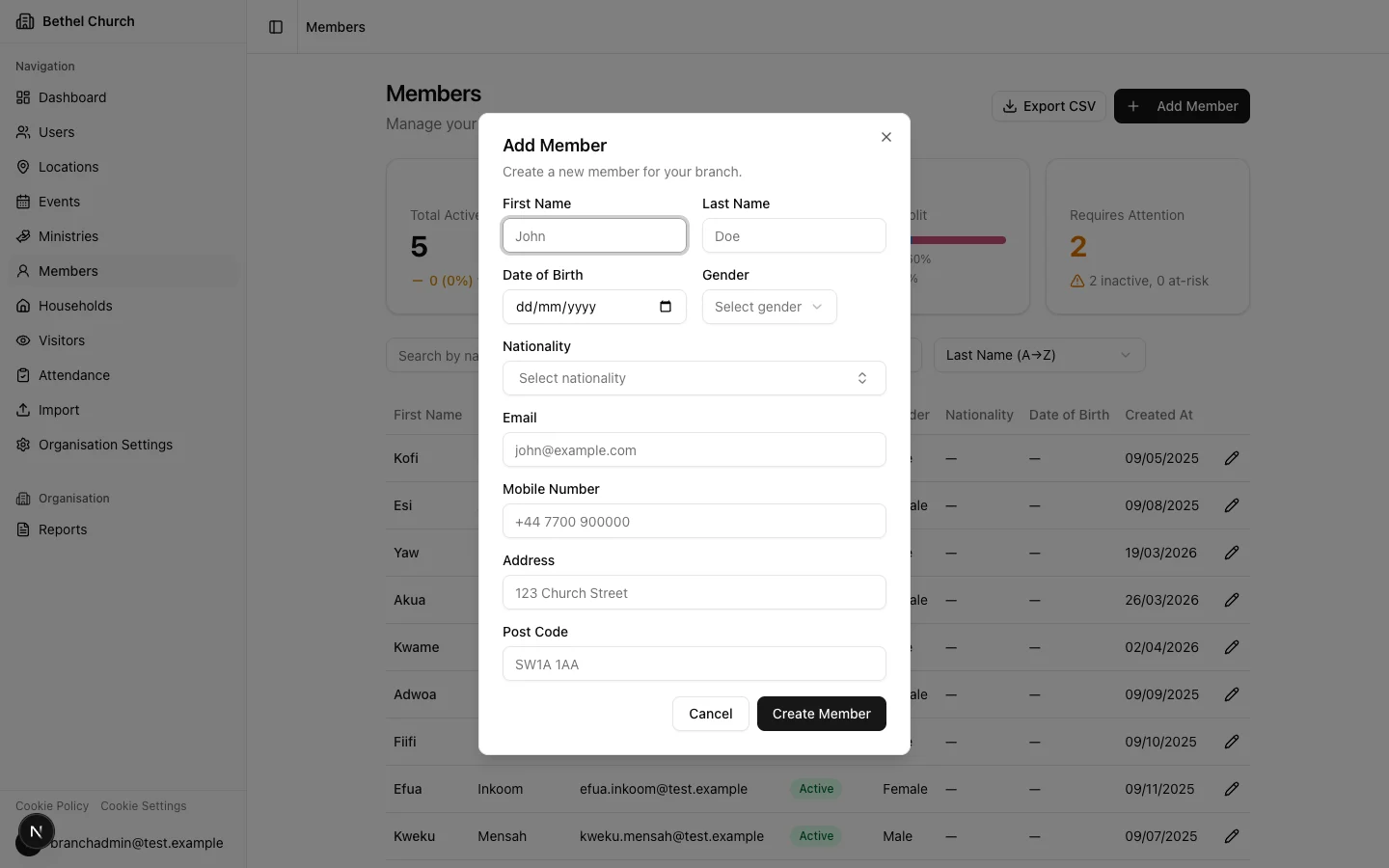
Click the **Add Member** button to open the new member dialog.
Enter the required fields: **First Name** and **Last Name**. You can also fill in optional fields: **Date of Birth**, **Age Group**, **Gender**, **Nationality**, **Email**, **Mobile Number**, **Address**, **Post Code**, **Tags**, and any configured custom fields.
Click **Create Member**. The member is created with a **Newcomer** status.
 ### Email and mobile uniqueness
When you add or edit a member, Bethel ChMS checks whether the email address or mobile number already belongs to another member in the same branch. If it finds a match, the form shows a warning with a link to the existing record.
Use the warning to review the existing record before you save. For higher-confidence duplicate pairs, use the **Possible Duplicates** queue and merge workflow.
### Age groups on member records
Age groups help you filter the member directory and report on demographics.
* If you enter **Date of Birth**, Bethel ChMS derives the member's age group from your organisation's age-group configuration.
* If you leave **Date of Birth** blank, you can choose **Age Group** manually.
* If both are present, **Date of Birth** takes precedence.
Use [age groups](/guides/age-groups) to configure the organisation-wide age brackets.
### Tags on member records
Tags help you label members for flexible filtering and reporting. For example, you might tag members as **Student**, **Deacon**, or **Choir**.
Use [Tags](/guides/tags) to create organisation-wide tags. Member create and edit forms only show tags that apply to members.
### Editing a member
Navigate to the member list and click on the member you want to edit.
On the member detail page, click **Edit** to open the editing sheet.
Make your changes and click **Save Changes**. If you change the email or mobile number, duplicate detection runs again.
The member detail page also shows tags, attendance history, ministry assignments, household information, group information, custom fields, and change history where available.
### Deleting a member
Editors cannot delete members.
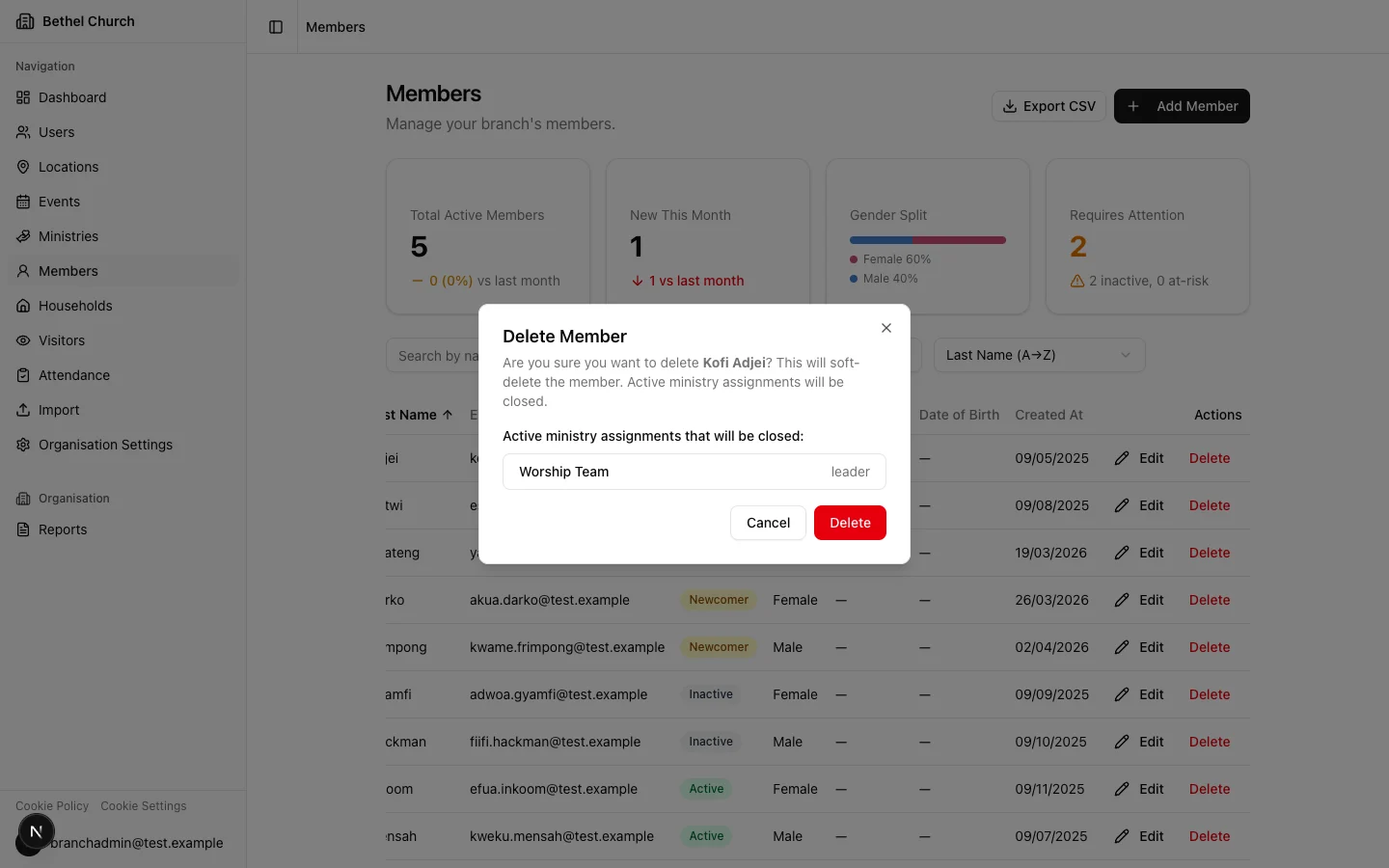
Deleting a member is a soft delete. The record is hidden but not permanently removed immediately. Attendance history remains available for historical reporting.
When a member is deleted, active ministry assignments are closed.
### Email and mobile uniqueness
When you add or edit a member, Bethel ChMS checks whether the email address or mobile number already belongs to another member in the same branch. If it finds a match, the form shows a warning with a link to the existing record.
Use the warning to review the existing record before you save. For higher-confidence duplicate pairs, use the **Possible Duplicates** queue and merge workflow.
### Age groups on member records
Age groups help you filter the member directory and report on demographics.
* If you enter **Date of Birth**, Bethel ChMS derives the member's age group from your organisation's age-group configuration.
* If you leave **Date of Birth** blank, you can choose **Age Group** manually.
* If both are present, **Date of Birth** takes precedence.
Use [age groups](/guides/age-groups) to configure the organisation-wide age brackets.
### Tags on member records
Tags help you label members for flexible filtering and reporting. For example, you might tag members as **Student**, **Deacon**, or **Choir**.
Use [Tags](/guides/tags) to create organisation-wide tags. Member create and edit forms only show tags that apply to members.
### Editing a member
Navigate to the member list and click on the member you want to edit.
On the member detail page, click **Edit** to open the editing sheet.
Make your changes and click **Save Changes**. If you change the email or mobile number, duplicate detection runs again.
The member detail page also shows tags, attendance history, ministry assignments, household information, group information, custom fields, and change history where available.
### Deleting a member
Editors cannot delete members.
Deleting a member is a soft delete. The record is hidden but not permanently removed immediately. Attendance history remains available for historical reporting.
When a member is deleted, active ministry assignments are closed.
 ### Lifecycle statuses
Every member in Bethel ChMS has one of three lifecycle statuses:
* **Newcomer**, assigned automatically when a member is first created.
* **Active**, indicates the member is regularly attending.
* **Inactive**, indicates the member has stopped attending.
You can manually change a member's status from the member edit form.
Bethel ChMS can automatically update lifecycle statuses based on attendance patterns. Here's how the defaults work:
* **Newcomer to Active:** A member is promoted to Active after 4 attendances within 90 days.
* **Active to Inactive:** A member is moved to Inactive after 30 days of absence.
These thresholds are configured at the organisation level, with optional per-branch overrides. Automation is disabled by default. To enable it, an Org Owner can go to **Organisation** > **Automation**. See [Automation rules](/guides/automation-rules).
### Filtering and searching
Use the search bar at the top of the member list to find members by first name, last name, email, or mobile number.
You can filter or sort by:
* **Status**
* **Nationality**
* **Age Group**
* **Gender**
* **Tags**
* Active member custom fields
Click **Clear all** to remove active filters. Click **Export CSV** to export the filtered list. Member exports include a **Tags** column.
### Merging duplicate members
Bethel ChMS can surface possible duplicate member pairs. When duplicates exist for the selected branch, the member list shows a banner with **Review pairs**.
From **Members**, click **Review pairs** in the duplicate banner. You can also open `/organisation/members/duplicates` directly in the app.
Compare the two records. Click **Not a duplicate** to dismiss the pair, or click **Merge members** to start the merge wizard.
Choose which record to keep. For fields such as **Email**, **Mobile**, **Address**, **Date of birth**, and **Nationality**, choose whether to keep the survivor value or adopt the other record's value.
Review the shared-attendance warning, type `MERGE`, and click **Merge permanently**.
Merging members is permanent. If both records attended the same event, duplicate attendance rows for the discarded record are permanently deleted.
You can also select exactly two same-branch members in the member list and click **Merge**.
When you merge duplicate members, Bethel ChMS keeps tags from both records on the survivor record.
## Visitors
### What is a visitor?
A **visitor** is someone who has attended your church but is not yet a member. Visitors are tracked separately so your team can follow up with them and, when the time is right, convert them into full members.
### Adding a visitor
In the sidebar, click **Visitors** to open the visitor list for your branch.
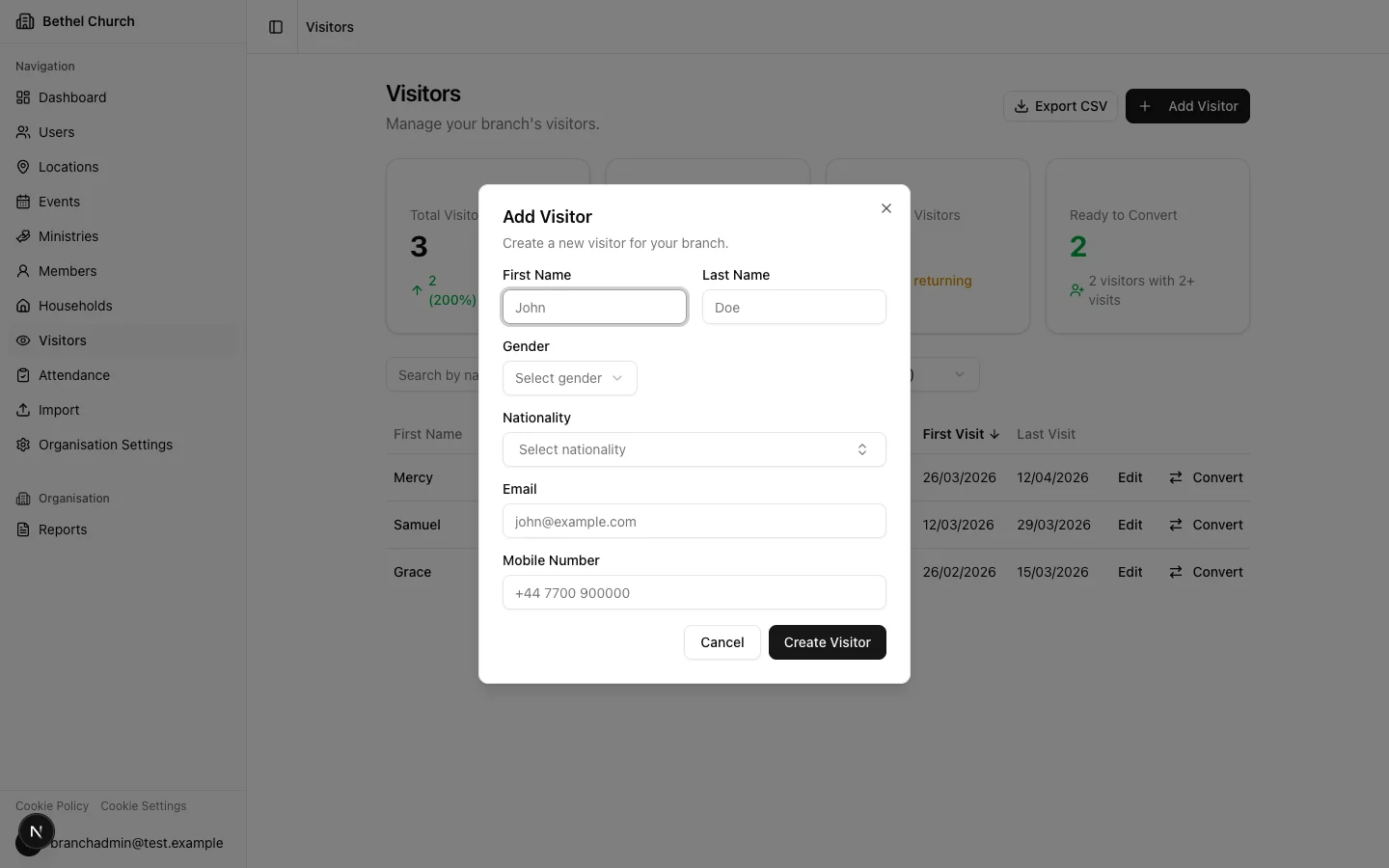
Click the **Add Visitor** button to open the new visitor dialog.
Enter the required fields: **First Name** and **Last Name**. You can also fill in optional fields: **Gender**, **Nationality**, **Email**, **Mobile Number**, **Tags**, and any configured visitor custom fields.
Click **Create Visitor**. The visit count is set to 1, and the first and last visit dates are recorded automatically.
### Lifecycle statuses
Every member in Bethel ChMS has one of three lifecycle statuses:
* **Newcomer**, assigned automatically when a member is first created.
* **Active**, indicates the member is regularly attending.
* **Inactive**, indicates the member has stopped attending.
You can manually change a member's status from the member edit form.
Bethel ChMS can automatically update lifecycle statuses based on attendance patterns. Here's how the defaults work:
* **Newcomer to Active:** A member is promoted to Active after 4 attendances within 90 days.
* **Active to Inactive:** A member is moved to Inactive after 30 days of absence.
These thresholds are configured at the organisation level, with optional per-branch overrides. Automation is disabled by default. To enable it, an Org Owner can go to **Organisation** > **Automation**. See [Automation rules](/guides/automation-rules).
### Filtering and searching
Use the search bar at the top of the member list to find members by first name, last name, email, or mobile number.
You can filter or sort by:
* **Status**
* **Nationality**
* **Age Group**
* **Gender**
* **Tags**
* Active member custom fields
Click **Clear all** to remove active filters. Click **Export CSV** to export the filtered list. Member exports include a **Tags** column.
### Merging duplicate members
Bethel ChMS can surface possible duplicate member pairs. When duplicates exist for the selected branch, the member list shows a banner with **Review pairs**.
From **Members**, click **Review pairs** in the duplicate banner. You can also open `/organisation/members/duplicates` directly in the app.
Compare the two records. Click **Not a duplicate** to dismiss the pair, or click **Merge members** to start the merge wizard.
Choose which record to keep. For fields such as **Email**, **Mobile**, **Address**, **Date of birth**, and **Nationality**, choose whether to keep the survivor value or adopt the other record's value.
Review the shared-attendance warning, type `MERGE`, and click **Merge permanently**.
Merging members is permanent. If both records attended the same event, duplicate attendance rows for the discarded record are permanently deleted.
You can also select exactly two same-branch members in the member list and click **Merge**.
When you merge duplicate members, Bethel ChMS keeps tags from both records on the survivor record.
## Visitors
### What is a visitor?
A **visitor** is someone who has attended your church but is not yet a member. Visitors are tracked separately so your team can follow up with them and, when the time is right, convert them into full members.
### Adding a visitor
In the sidebar, click **Visitors** to open the visitor list for your branch.
Click the **Add Visitor** button to open the new visitor dialog.
Enter the required fields: **First Name** and **Last Name**. You can also fill in optional fields: **Gender**, **Nationality**, **Email**, **Mobile Number**, **Tags**, and any configured visitor custom fields.
Click **Create Visitor**. The visit count is set to 1, and the first and last visit dates are recorded automatically.
 ### Visit tracking
Bethel ChMS automatically tracks three fields for every visitor:
* **Visit count**, increments each time the visitor checks in to an event.
* **Last visit date**, updates to the most recent check-in date.
* **First visit date**, set when the visitor is created and never changes.
These fields are system-managed. They update when the visitor is checked in through attendance or public check-in flows.
### Finding visitors to follow up
The visitor page includes stat cards for total visitors, new visitors this month, returning visitors, and visitors who are ready to convert. Click the **Ready to Convert** card to filter the list to visitors with at least 2 visits.
Use the search bar to find visitors by name, email, or mobile number. You can also filter by **Nationality**, **Tags**, and visitor custom fields. Click **Export CSV** to export the filtered list. Visitor exports include a **Tags** column.
### Converting a visitor to a member
When a visitor is ready to join your church as a member, you can convert their record directly.
In the visitor list, find the visitor you want to convert.
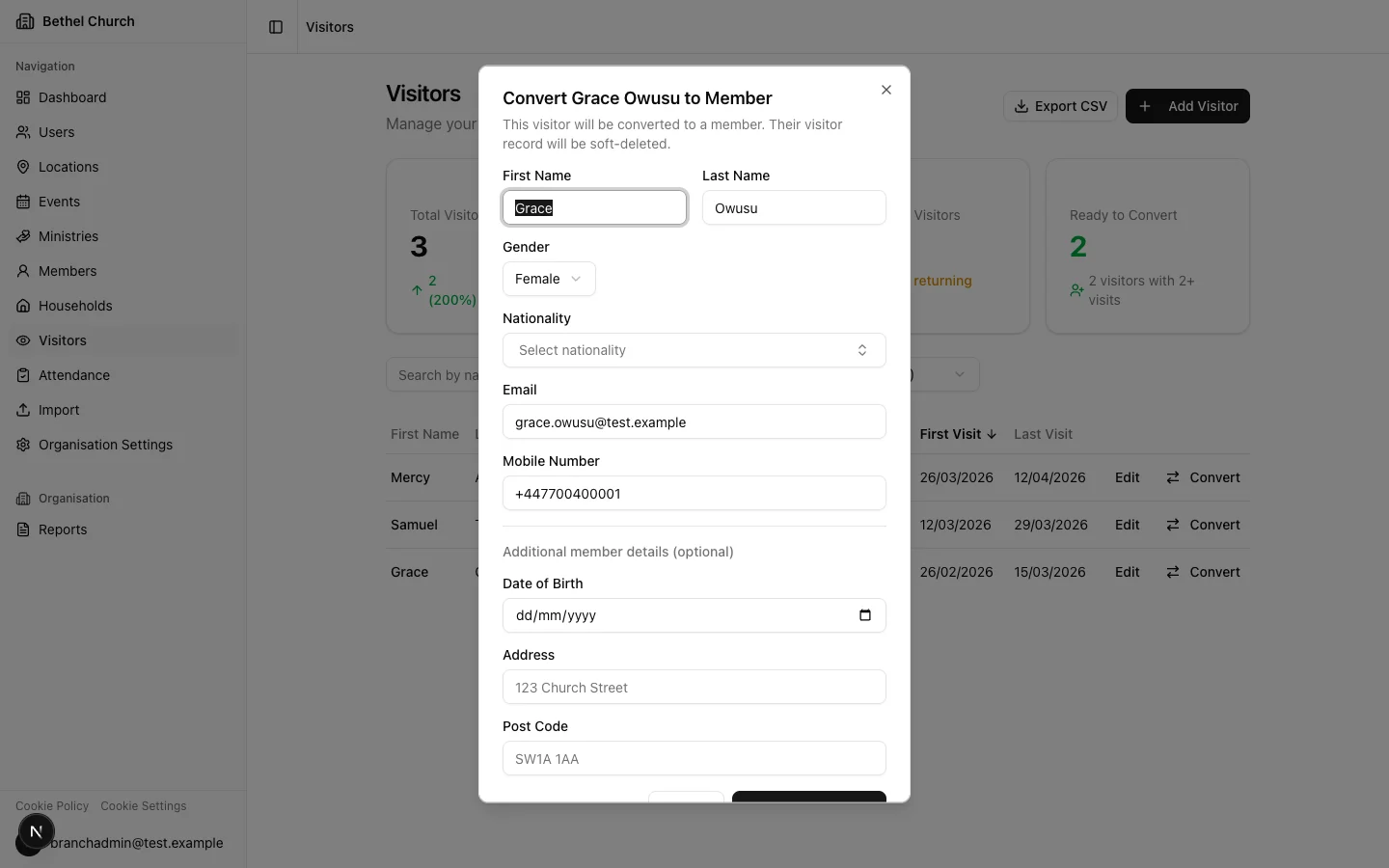
In the visitor row, click **Convert**. A dialog opens with the visitor's details pre-filled.
Review the pre-filled fields and make any corrections. You can also add **Date of Birth**, **Address**, **Post Code**, and **Tags**.
Click **Convert to Member**. Bethel ChMS creates a new member record with **Newcomer** status and soft-deletes the visitor record.
The new member stores a link to the original visitor record through the conversion reference. On the member's dedicated profile page, the **Attendance** tab includes attendance recorded before conversion as visitor attendance, alongside attendance recorded after conversion as member attendance.
Member-compatible tags from the visitor record are carried into the conversion dialog. Visitor-only tags are not added to the new member.
If the visitor's email or mobile number already belongs to an existing member in the same branch, you'll see a warning before the conversion completes. Check the existing member record to avoid creating a duplicate.
### Visit tracking
Bethel ChMS automatically tracks three fields for every visitor:
* **Visit count**, increments each time the visitor checks in to an event.
* **Last visit date**, updates to the most recent check-in date.
* **First visit date**, set when the visitor is created and never changes.
These fields are system-managed. They update when the visitor is checked in through attendance or public check-in flows.
### Finding visitors to follow up
The visitor page includes stat cards for total visitors, new visitors this month, returning visitors, and visitors who are ready to convert. Click the **Ready to Convert** card to filter the list to visitors with at least 2 visits.
Use the search bar to find visitors by name, email, or mobile number. You can also filter by **Nationality**, **Tags**, and visitor custom fields. Click **Export CSV** to export the filtered list. Visitor exports include a **Tags** column.
### Converting a visitor to a member
When a visitor is ready to join your church as a member, you can convert their record directly.
In the visitor list, find the visitor you want to convert.
In the visitor row, click **Convert**. A dialog opens with the visitor's details pre-filled.
Review the pre-filled fields and make any corrections. You can also add **Date of Birth**, **Address**, **Post Code**, and **Tags**.
Click **Convert to Member**. Bethel ChMS creates a new member record with **Newcomer** status and soft-deletes the visitor record.
The new member stores a link to the original visitor record through the conversion reference. On the member's dedicated profile page, the **Attendance** tab includes attendance recorded before conversion as visitor attendance, alongside attendance recorded after conversion as member attendance.
Member-compatible tags from the visitor record are carried into the conversion dialog. Visitor-only tags are not added to the new member.
If the visitor's email or mobile number already belongs to an existing member in the same branch, you'll see a warning before the conversion completes. Check the existing member record to avoid creating a duplicate.
 ### Deleting a visitor
Editors cannot delete visitors.
Deleting a visitor is a soft delete. The visitor is hidden from active lists.
### Deleting a visitor
Editors cannot delete visitors.
Deleting a visitor is a soft delete. The visitor is hidden from active lists.