

1
Open user management
In the sidebar, click Users. This opens the user management page where you can see everyone who has access to your organisation and send new invitations.
2
Send an invitation
Click Invite User and fill in the form: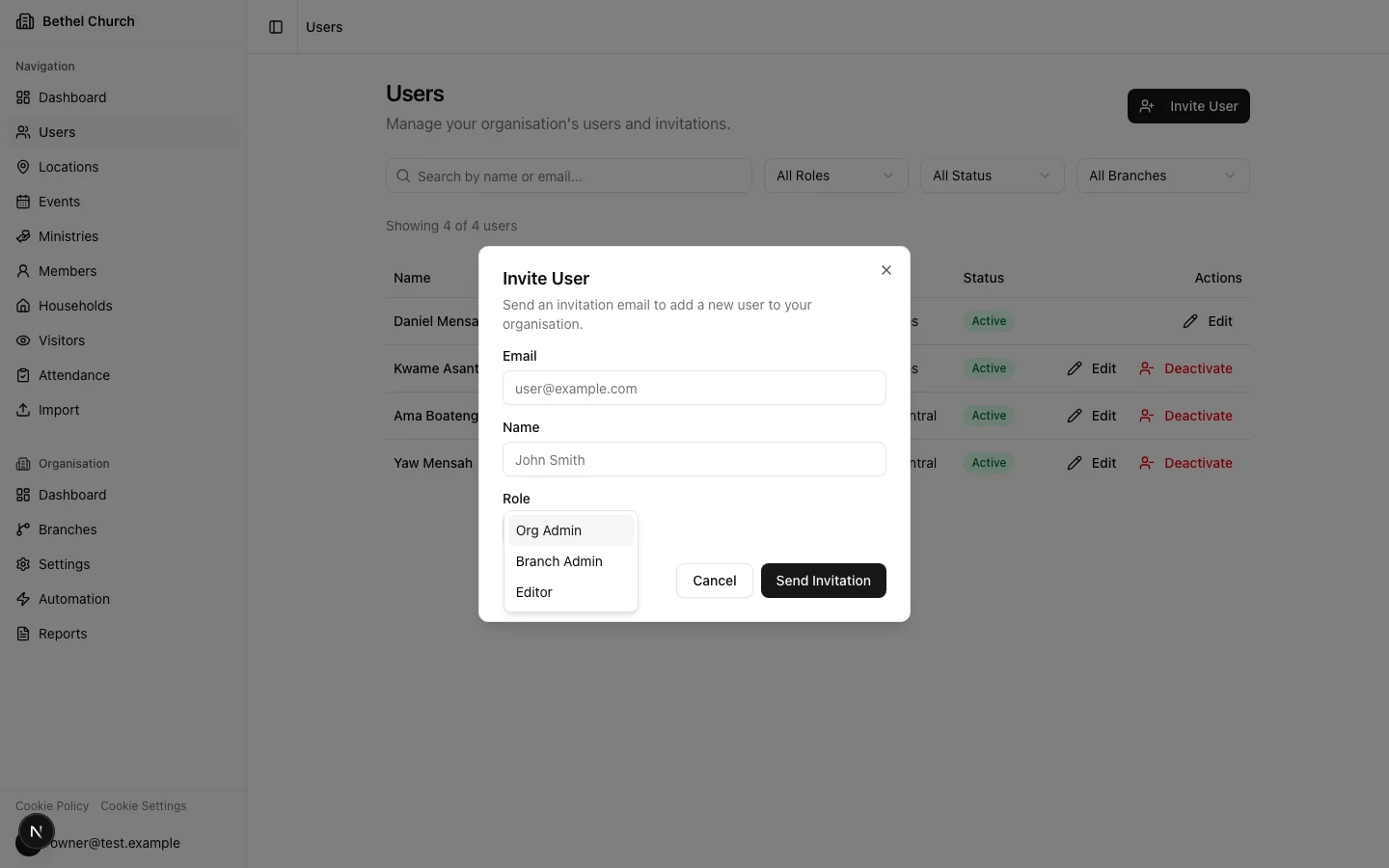
3
Choose the right role
Not sure which role to pick? Here’s a quick summary:
- Org Admin: Organisation-level access across every branch. Good for senior pastors or headquarters staff who oversee the whole network.
- Branch Admin: Manages members, attendance, and events for a specific branch. Ideal for local pastors or office managers.
- Editor: Can add and update records within a branch but cannot change settings or invite others.
- Treasurer: Can access Gifting & Donations for one branch, without access to members, events, or other branch data.
4
What the invitee sees
The invitee receives an email with a magic link. When they click it, they land on the Accept invitation page, which shows: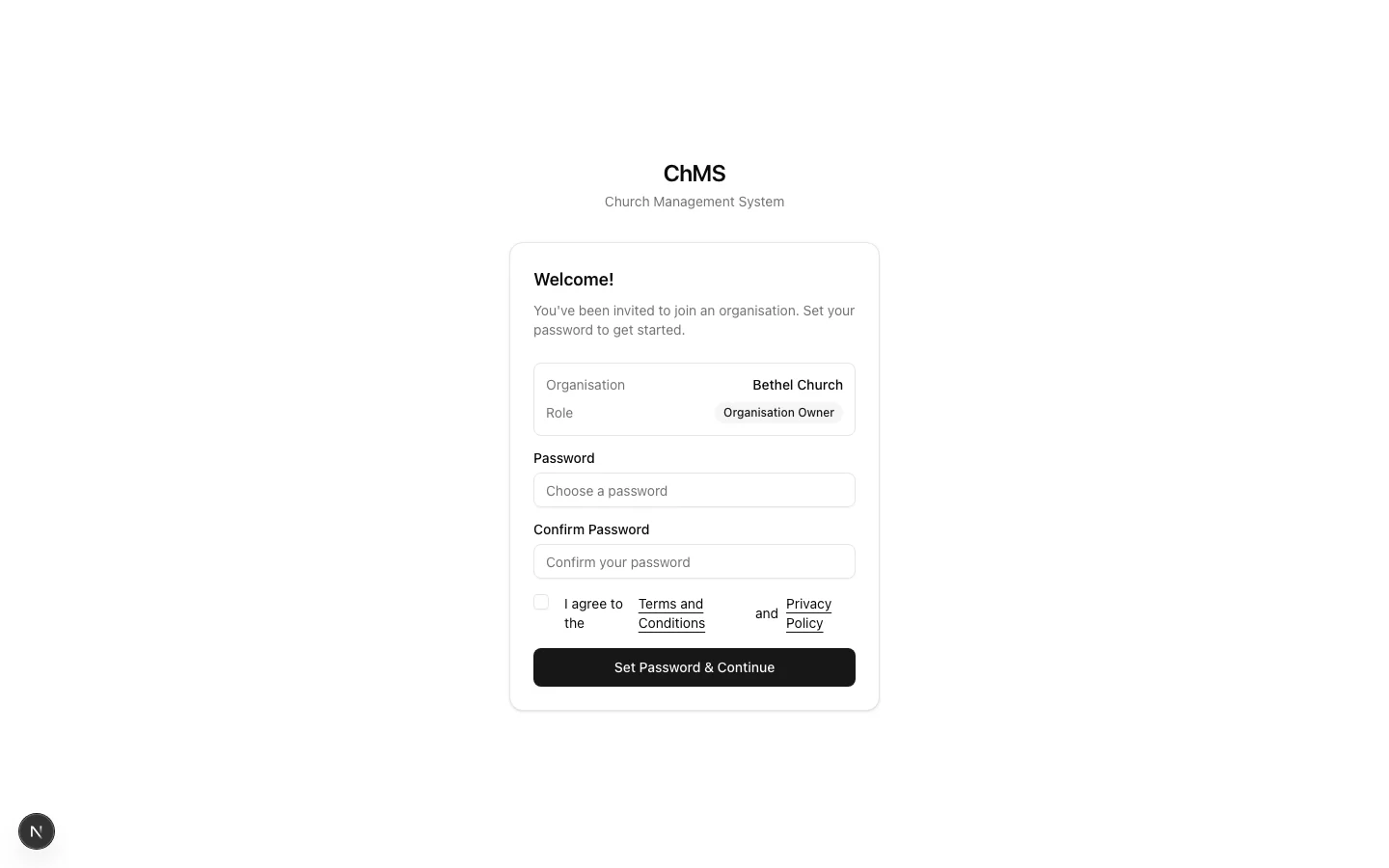
- The name of your organisation
- The role they’ve been assigned
- The branch they belong to, if their role is branch-scoped
Who can invite whom:
- Org Owner can invite Org Admin, Branch Admin, Editor, and Treasurer.
- Org Admin can invite Org Admin, Branch Admin, Editor, and Treasurer.
- Branch Admin can invite Branch Admin and Editor within their own branch.
- Editor cannot invite anyone.
- Treasurer cannot invite anyone.
Invitations expire after 7 days. If someone misses theirs, go back to the Users page and resend it.
Manage invitations and users
Use the Users page to search users, filter by role, filter by status, and resend pending invitations. Org-scoped users can also filter by All Branches or a specific branch. For the full user management workflow, see User management.What to do next
Your team has access, time to start adding the people your church serves.Manage your members
Add members, organize them by branch, and keep your church directory up to date.