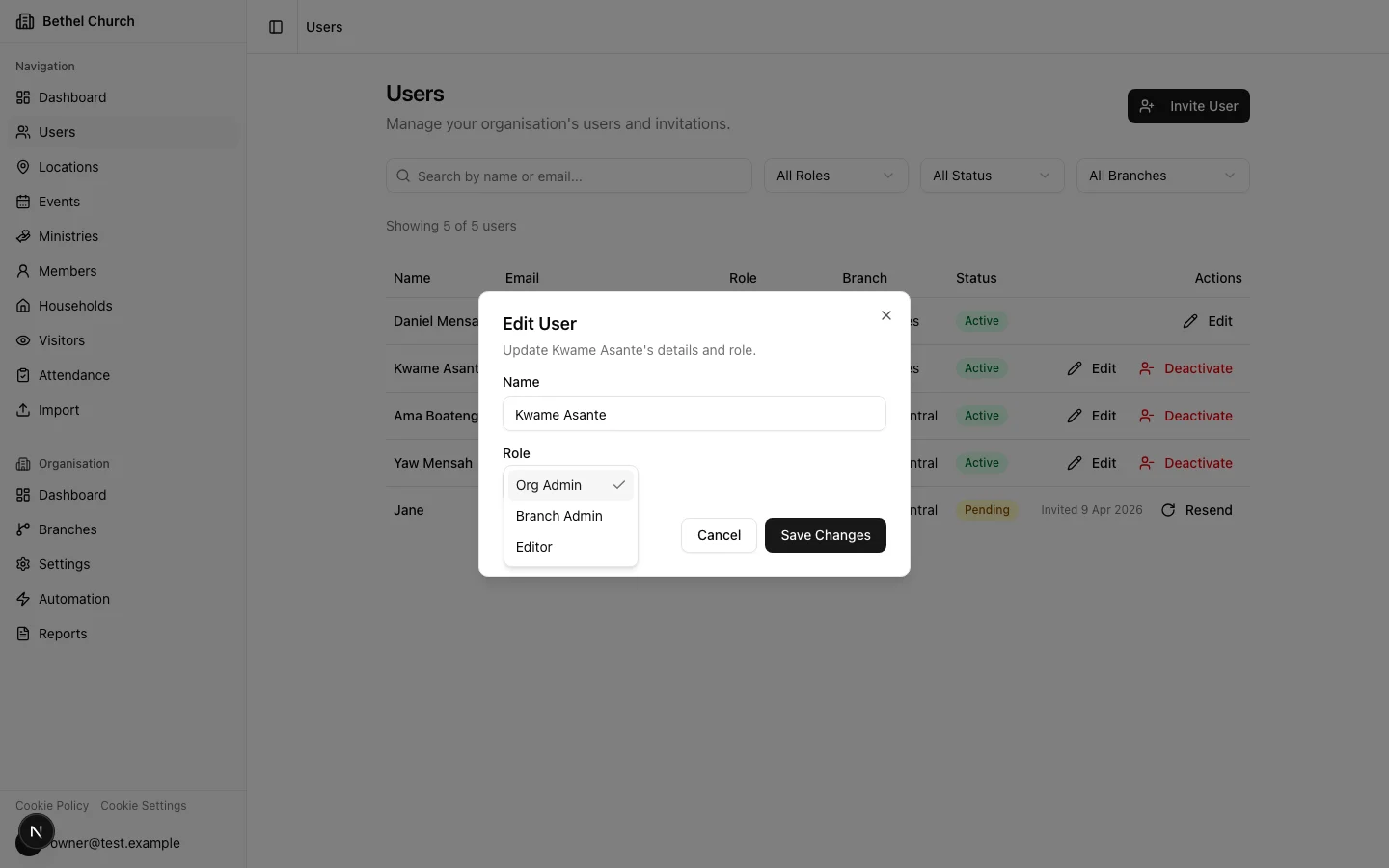
The five roles
Organisation owner
There is one organisation owner per organisation. The owner has full control over the organisation, including settings, branches, users, billing, currency, ownership transfer, and organisation deletion. The organisation owner is the only person who can transfer ownership to someone else.Organisation admin
Organisation admins have visibility across the entire organisation. They can view branch records across all branches and manage supported branch records after selecting a branch. They can manage users, branches, custom fields, tags, update campaigns, and organisation-wide reports. Think of this role as headquarters oversight and administration. Most day-to-day branch data entry still happens at the branch level.Branch admin
Branch admins have full control within their own branch. They can create, edit, and delete members, events, locations, attendance records, visitors, and branch update campaigns. They can also invite other branch admins and editors to their branch. This is the right role for a local church administrator or branch pastor who manages their own congregation’s data.Editor
Editors can create and edit records within their branch, including members, events, locations, attendance, and visitors. They can view update campaign dashboards and review submitted campaign changes. They cannot delete records, manage campaigns, or manage users. Assign this role to volunteers or staff who need to enter data but should not remove anything or invite other users.Treasurer
Treasurers are branch-scoped finance users. They can access Gifting & Donations and gifting reports for their assigned branch. They cannot access members, update campaigns, events, ministries, attendance, users, branch settings, or organisation settings. Assign this role to finance team members who need donation records without wider church management access.Org-scoped vs branch-scoped
Roles fall into two groups based on what they can see:- Org-scoped roles (Org Owner and Org Admin) can see data across all branches. Branch-level pages let them select a branch and manage supported records in that branch.
- Branch-scoped roles (Branch Admin, Editor, and Treasurer) only see their own branch. They work with the data they’re responsible for and have no visibility into other branches.
Org-scoped roles use the branch selector for branch-level pages. Check each feature guide for the exact actions available.
Branch selector behavior
Org-scoped users see a branch selector on branch-level pages such as Dashboard, Members, Events, Locations, Attendance, and Visitors. Selecting a branch adds abranchId value to the URL and saves the selection for future pages.
Branch-scoped users do not see the branch selector. Bethel ChMS always uses their assigned branch.
Per-role capabilities
Organisation owner
Organisation owner
Organisation admin
Organisation admin
Branch admin
Branch admin
Editor
Editor
Treasurer
Treasurer
Who can invite whom
Not every role can invite every other role. Here’s how the invitation chain works:Branch admins can only invite people into their own branch. They cannot invite Org Admin or Treasurer users.
How role changes take effect
When you change someone’s role or branch assignment, Bethel ChMS refreshes their access token automatically. The new permissions apply almost immediately, so the person does not need to log out and back in.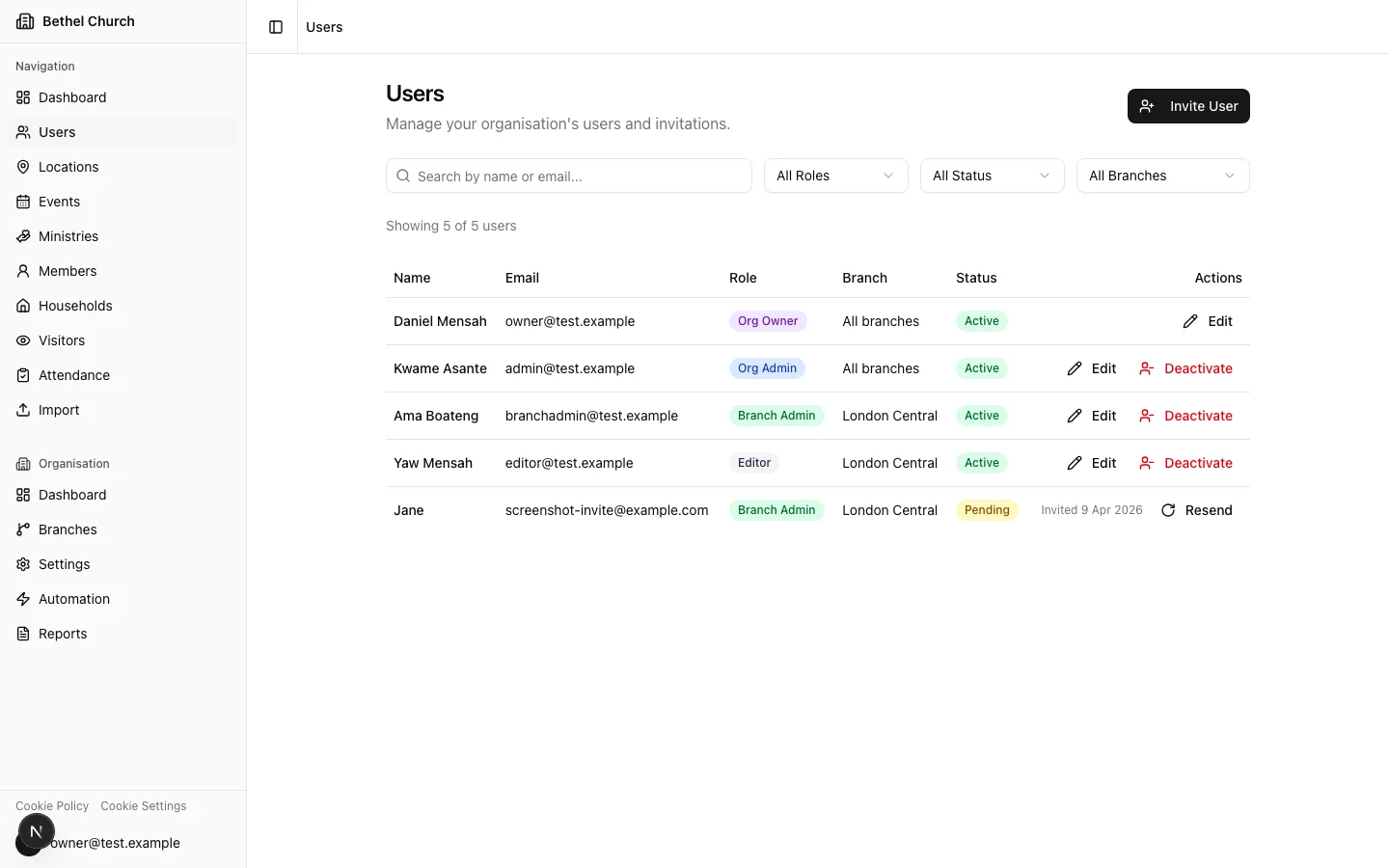
Transferring ownership
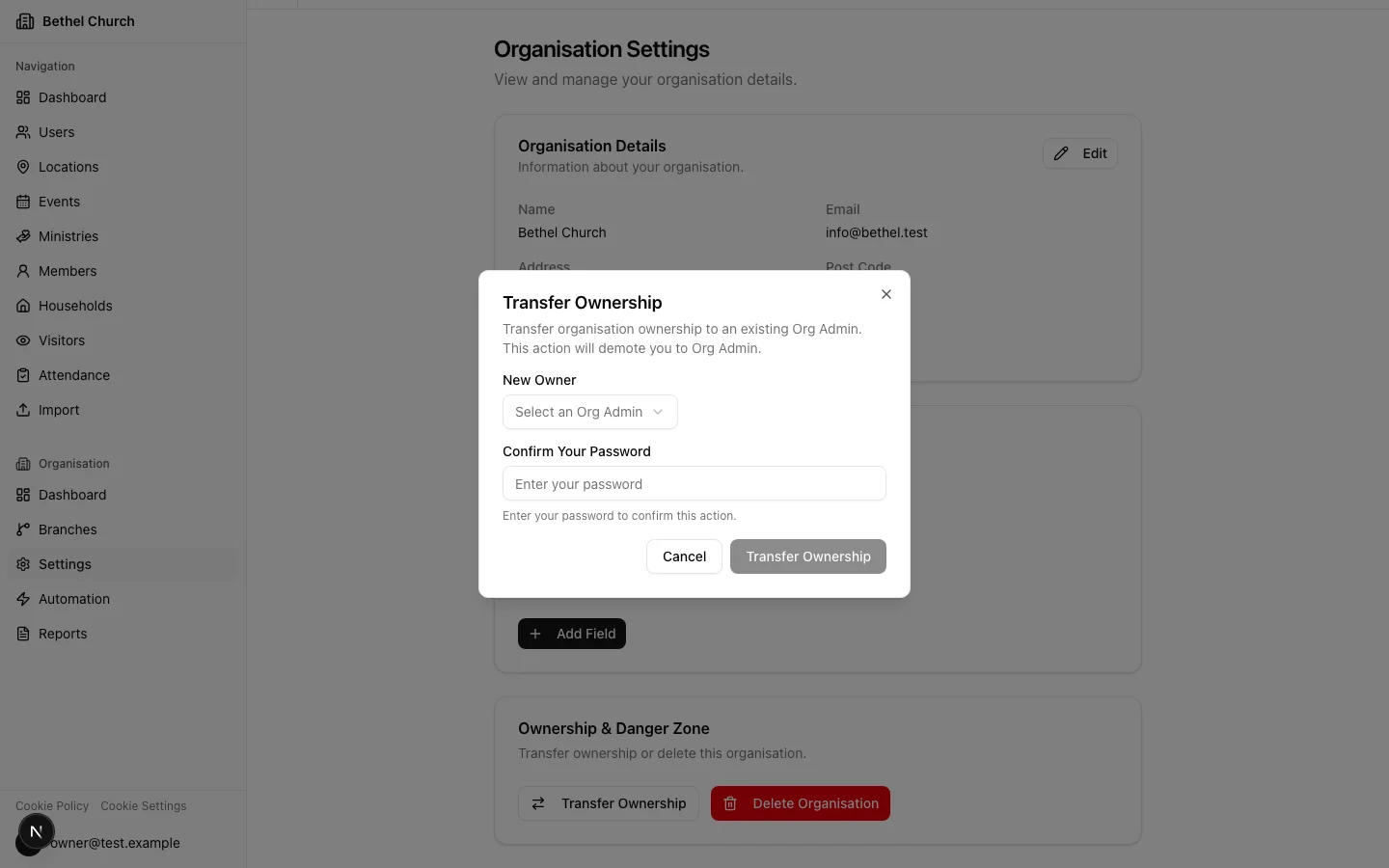
Only the current organisation owner can transfer ownership. You might do this when a senior pastor hands off leadership, or when a denominational office restructures how accounts are managed.1
Open organisation settings
Go to Organisation Settings from the sidebar.
2
Select a new owner
In the ownership section, choose an existing Org Admin to become the new owner. Only active org-scoped Org Admin users are eligible.
3
Confirm with your password
Enter your password and complete the CAPTCHA challenge to confirm the transfer. Once confirmed, you become an Org Admin and the selected person becomes the Org Owner.