

Who can do this: Org Owner, Org Admin, Branch Admin, and Editor can create, edit, and manage ministry rosters. Org Owner, Org Admin, and Branch Admin can delete ministries and link groups. Editors cannot delete ministries or link groups.
Creating a ministry
1
Open the ministries page
In the sidebar, click Ministries.
2
Start a new ministry
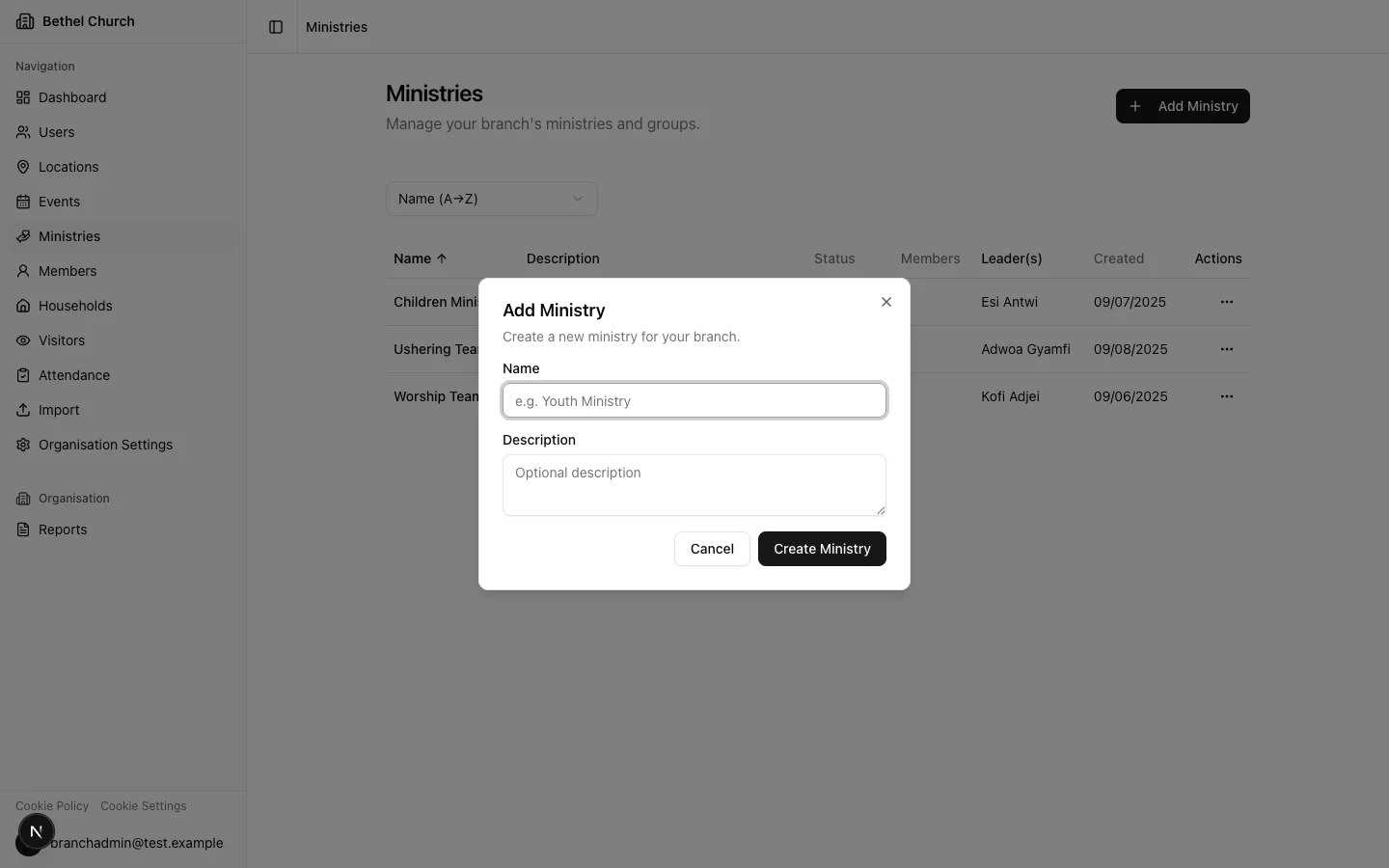
Click Add Ministry. A dialog will open with the ministry form.
3
Fill in the details
Enter a Name for the ministry. The name must be unique within your branch. Optionally, add a Description to explain the ministry’s purpose.
4
Save the ministry
Click Create Ministry. The ministry is created with an Active status by default.
Assigning members
Once a ministry exists, you can start adding members to it and assigning them roles.1
Open the ministry
Click on the ministry you want to add members to.
2
Add a member
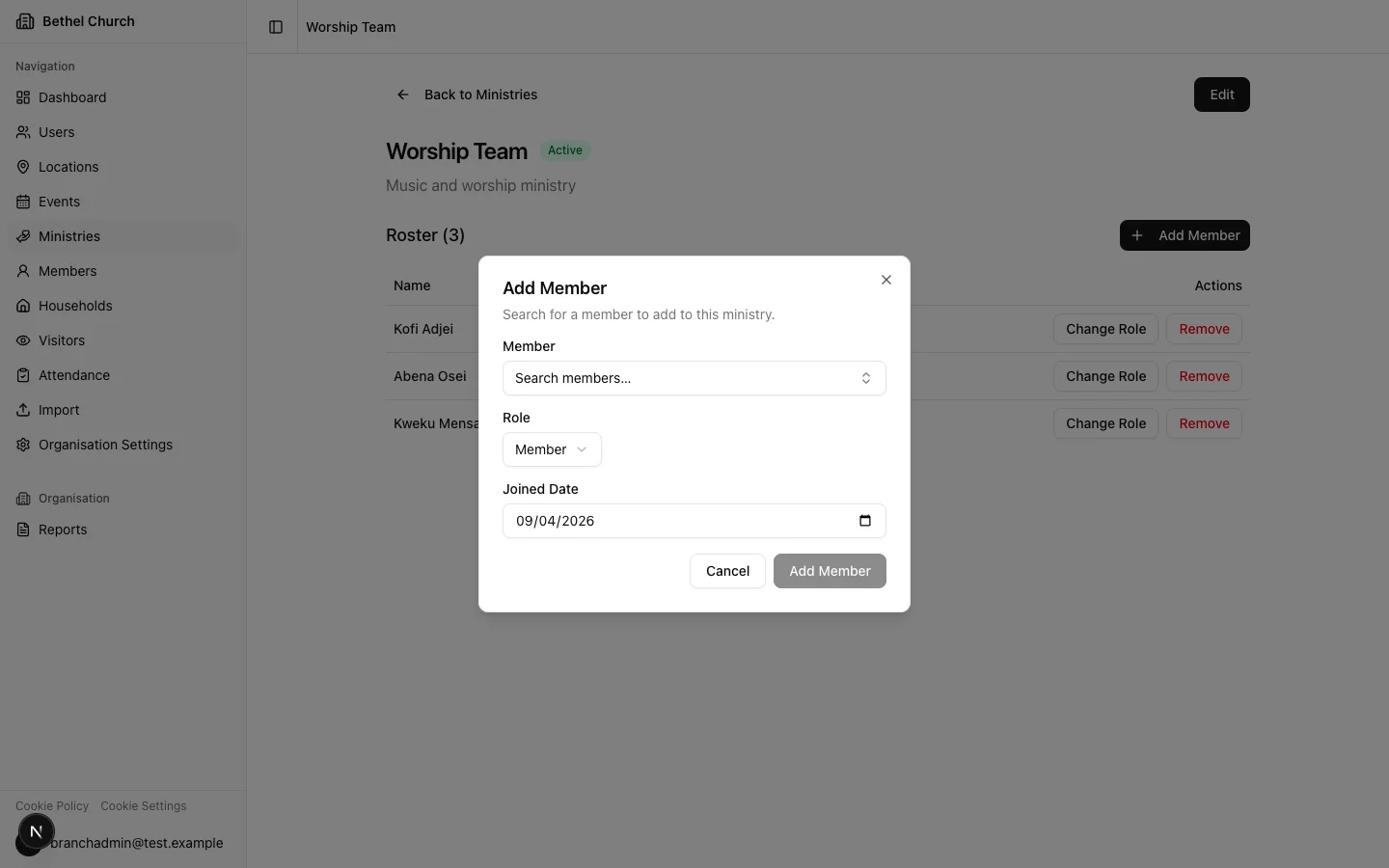
Click Add Member. A dialog will open with a search field.
3
Search and select
Search for a member by name, then select them from the results.
4
Assign a role
Choose a role for this member: Leader, Assistant Leader, or Member.
5
Set the joined date and confirm
Set the Joined Date and click Add Member to add them to the roster.
A member can only be assigned to a ministry within their own branch.
Ministry roles explained
Each person in a ministry is assigned one of three roles:- Leader: The primary person responsible for the ministry. Ministry leaders may have additional portal permissions in future.
- Assistant Leader: Supports the ministry leader in coordinating the team.
- Member: A general participant in the ministry.
Removing a member from a ministry
When you remove someone from a ministry, Bethel ChMS sets a Leave Date on their assignment rather than deleting the record. This preserves their tenure history.1
Open the ministry roster
Navigate to the ministry and view its roster.
2
Remove the member
Find the member you want to remove and click Remove.
3
Confirm removal
Confirm the action. Bethel ChMS will set a leave date on the assignment, and the member will no longer appear in the active roster.
If a member re-joins a ministry later, a new assignment record is created. Their previous tenure is preserved as a separate record.
Viewing the roster
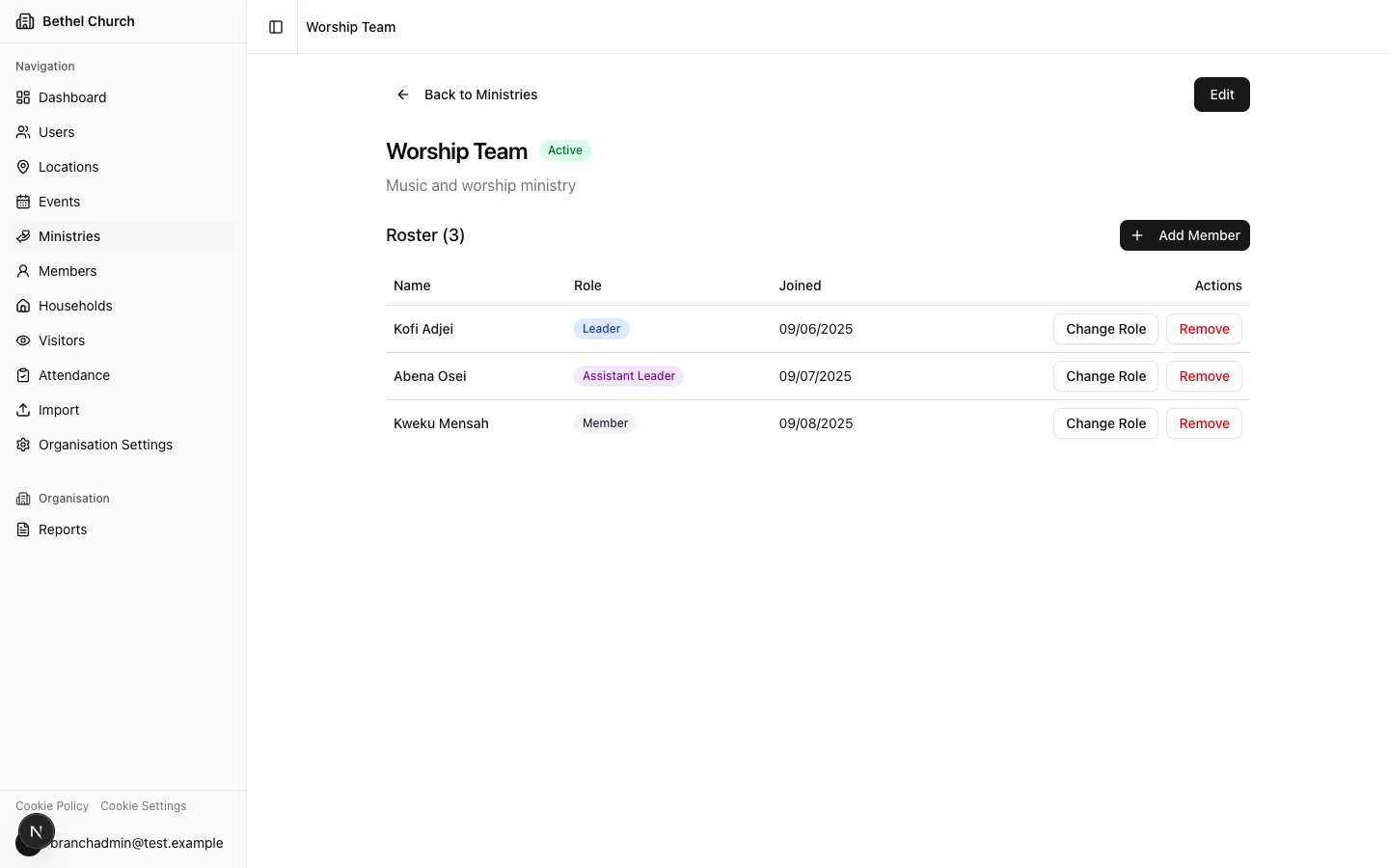
The ministry detail page shows active roster members, those with no leave date. For each person, you can see their name, role, and joined date. Use the roster view toggle to choose how you want to read the roster:- Flat shows each member once. If a member is in the ministry directly and through a linked group, the direct assignment takes precedence for the displayed role.
- By group groups members by linked group. It also shows a Direct only bucket for members who are assigned directly and are not active in a linked group.
Archiving a ministry
Archiving a ministry sets its status to Archived. You can no longer assign new members to an archived ministry, but the existing roster and history are preserved. You can reactivate an archived ministry at any time.1
Open the ministry
Navigate to the ministry you want to archive.
2
Archive the ministry
Click Edit, change Status to Archived, and click Save Changes.
Deleting a ministry
Deleting a ministry is a soft delete. Bethel ChMS automatically closes all active direct assignments and moves the ministry to a deleted state. Deleted ministries can be recovered within 30 days.1
Open the ministry
In the Ministries list, find the ministry you want to delete.
2
Delete the ministry
Open the ministry’s actions menu, click Delete, and confirm the action. All active member assignments are closed automatically.
If you just want to pause a ministry temporarily, consider archiving it instead. Archiving keeps the ministry visible in your list and preserves the roster without requiring recovery.
Linking groups to a ministry
You can link groups to a ministry when groups represent sub-teams, cells, or fellowships that belong under the ministry. A ministry can have many linked groups, but each group can link to only one ministry. When you link a group, Bethel ChMS adds the group’s active members to the ministry roster as group-sourced members. Direct ministry assignments stay separate, so unlinking a group does not remove members who still have a direct assignment or another linked-group path into the ministry.Link a group from a ministry
1
Open the ministry
In the sidebar, click Ministries, then open the ministry.
2
Start linking
In Linked Groups, click Link a group.
3
Choose a group
Select an unlinked group from the same branch. Groups that are already linked to a ministry do not appear in the list.
4
Confirm the link
Click Link Group. Bethel ChMS adds the group’s active members to the ministry roster.
Link a ministry when creating a group
You can also link a group while creating it from Groups. Choose the ministry in the Ministry field before you click Create Group. If the group is created but the ministry link fails, Bethel ChMS keeps the group and shows an error toast for the failed link.Unlink a group
1
Open the ministry
In the sidebar, click Ministries, then open the ministry.
2
Find the group
In Linked Groups, find the group you want to unlink.
3
Preview the impact
Click Unlink. Bethel ChMS shows how many roster members will be removed and how many will stay because they are direct members or are in another linked group.
4
Confirm unlinking
Click Unlink to remove the group link.