Who can do this: Org Owner, Org Admin, Branch Admin, and Editor can create and edit members and visitors in the app. Org Owner, Org Admin, and Branch Admin can delete them. Importing members is available to Org Owner, Org Admin, and Branch Admin. See roles and permissions for your organisation’s role model.
Members
Adding a member
1
Open the member list
In the sidebar, click Members to open the member list for your branch.
2
Click Add Member
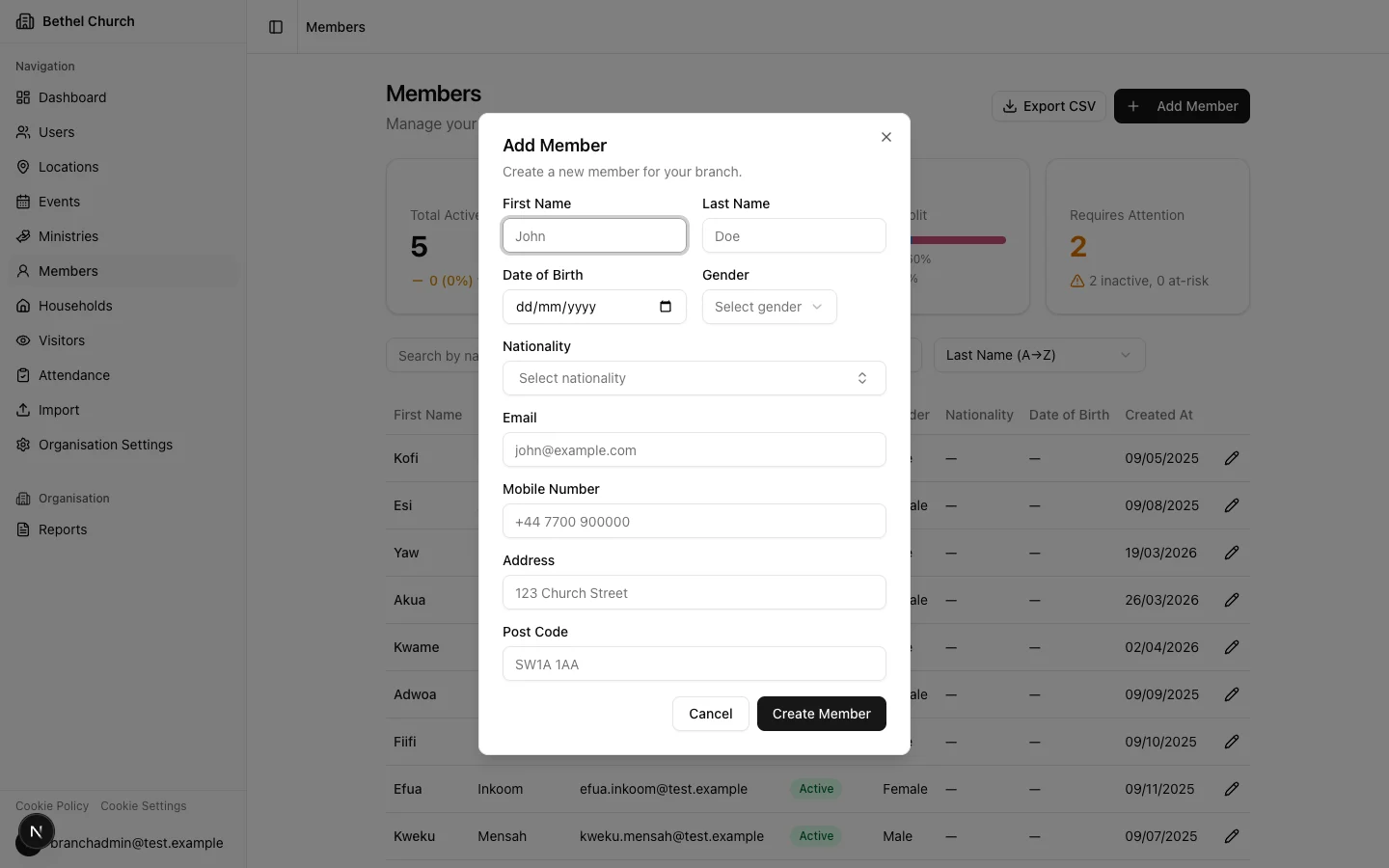
Click the Add Member button to open the new member dialog.
3
Fill in the member details
Enter the required fields: First Name and Last Name. You can also fill in optional fields: Date of Birth, Age Group, Gender, Nationality, Email, Mobile Number, Address, Post Code, Tags, and any configured custom fields.
4
Save the member
Click Create Member. The member is created with a Newcomer status.
Email and mobile uniqueness
When you add or edit a member, Bethel ChMS checks whether the email address or mobile number already belongs to another member in the same branch. If it finds a match, the form shows a warning with a link to the existing record.Age groups on member records
Age groups help you filter the member directory and report on demographics.- If you enter Date of Birth, Bethel ChMS derives the member’s age group from your organisation’s age-group configuration.
- If you leave Date of Birth blank, you can choose Age Group manually.
- If both are present, Date of Birth takes precedence.
Tags on member records
Tags help you label members for flexible filtering and reporting. For example, you might tag members as Student, Deacon, or Choir. Use Tags to create organisation-wide tags. Member create and edit forms only show tags that apply to members.Editing a member
1
Open the member's profile
Navigate to the member list and click on the member you want to edit.
2
Click Edit
On the member detail page, click Edit to open the editing sheet.
3
Update fields and save
Make your changes and click Save Changes. If you change the email or mobile number, duplicate detection runs again.
Deleting a member
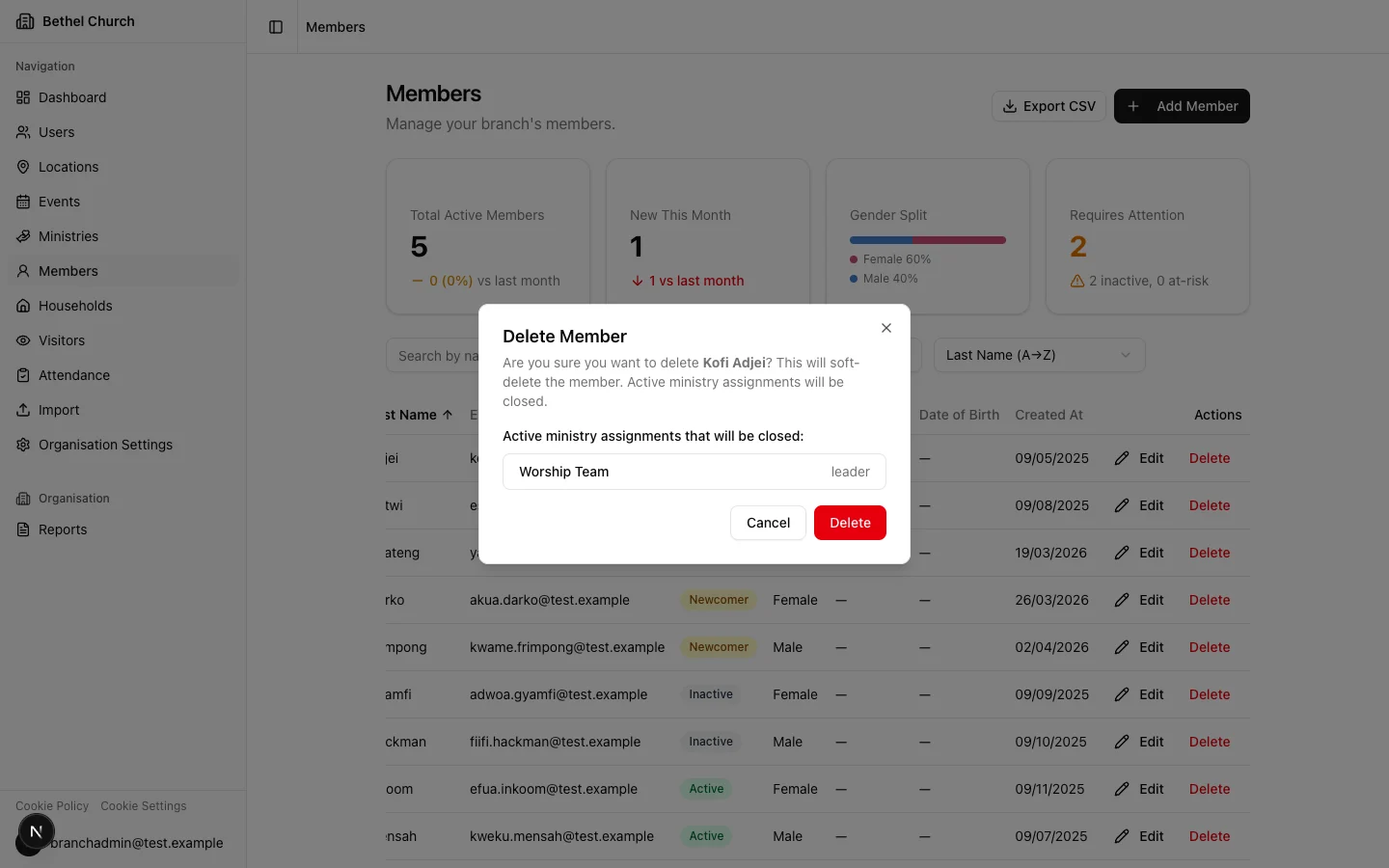
Deleting a member is a soft delete. The record is hidden but not permanently removed immediately. Attendance history remains available for historical reporting.When a member is deleted, active ministry assignments are closed.
Lifecycle statuses
Every member in Bethel ChMS has one of three lifecycle statuses:- Newcomer, assigned automatically when a member is first created.
- Active, indicates the member is regularly attending.
- Inactive, indicates the member has stopped attending.
How automation rules work
How automation rules work
Bethel ChMS can automatically update lifecycle statuses based on attendance patterns. Here’s how the defaults work:
- Newcomer to Active: A member is promoted to Active after 4 attendances within 90 days.
- Active to Inactive: A member is moved to Inactive after 30 days of absence.
Filtering and searching
Use the search bar at the top of the member list to find members by first name, last name, email, or mobile number. You can filter or sort by:- Status
- Nationality
- Age Group
- Gender
- Tags
- Active member custom fields
Merging duplicate members
Bethel ChMS can surface possible duplicate member pairs. When duplicates exist for the selected branch, the member list shows a banner with Review pairs.1
Open possible duplicates
From Members, click Review pairs in the duplicate banner. You can also open
/organisation/members/duplicates directly in the app.2
Review the pair
Compare the two records. Click Not a duplicate to dismiss the pair, or click Merge members to start the merge wizard.
3
Choose the survivor record
Choose which record to keep. For fields such as Email, Mobile, Address, Date of birth, and Nationality, choose whether to keep the survivor value or adopt the other record’s value.
4
Review and confirm
Review the shared-attendance warning, type
MERGE, and click Merge permanently.Visitors
What is a visitor?
A visitor is someone who has attended your church but is not yet a member. Visitors are tracked separately so your team can follow up with them and, when the time is right, convert them into full members.Adding a visitor
1
Open the visitor list
In the sidebar, click Visitors to open the visitor list for your branch.
2
Click Add Visitor
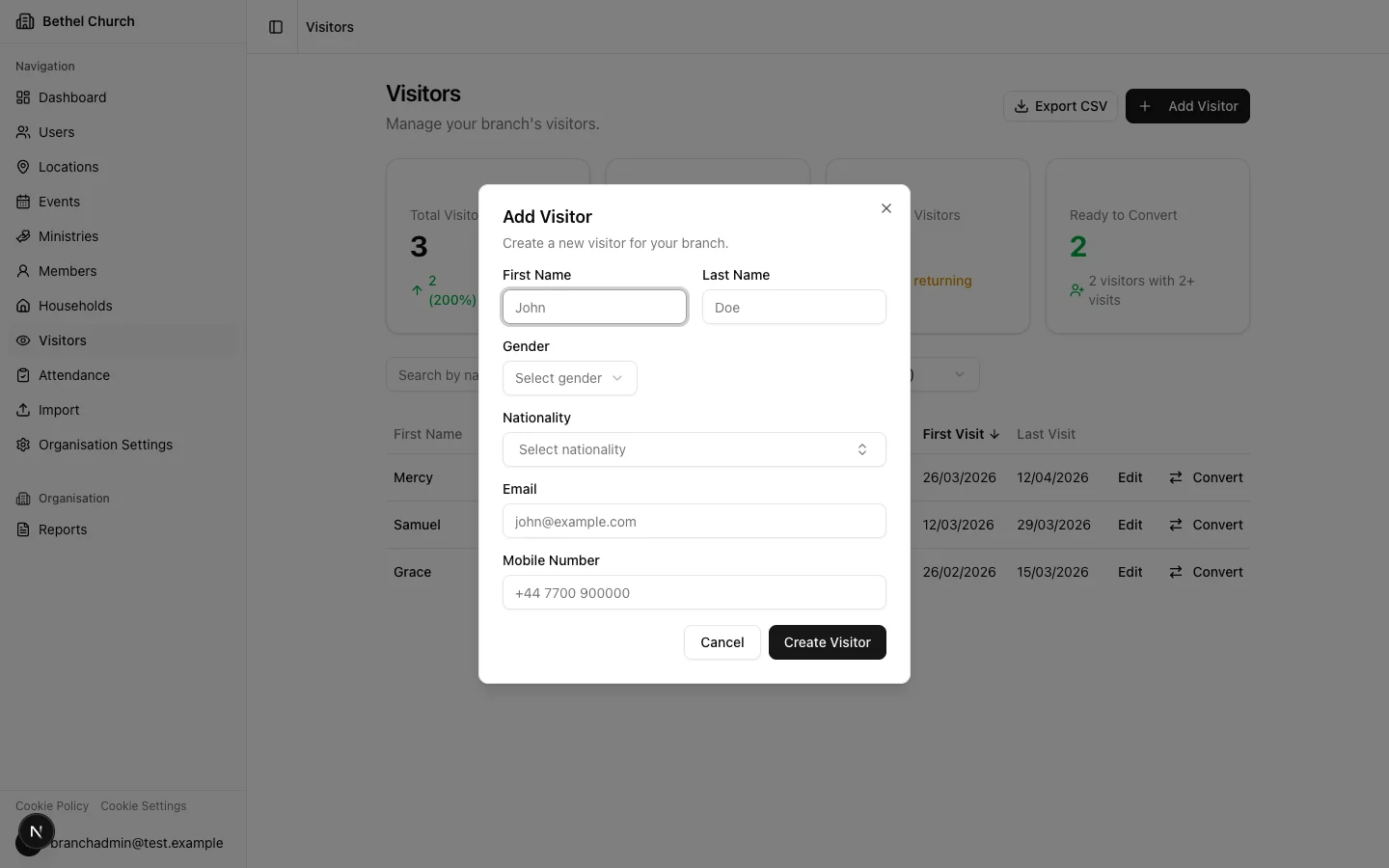
Click the Add Visitor button to open the new visitor dialog.
3
Fill in visitor details
Enter the required fields: First Name and Last Name. You can also fill in optional fields: Gender, Nationality, Email, Mobile Number, Tags, and any configured visitor custom fields.
4
Save the visitor
Click Create Visitor. The visit count is set to 1, and the first and last visit dates are recorded automatically.
Visit tracking
Bethel ChMS automatically tracks three fields for every visitor:- Visit count, increments each time the visitor checks in to an event.
- Last visit date, updates to the most recent check-in date.
- First visit date, set when the visitor is created and never changes.
Finding visitors to follow up
The visitor page includes stat cards for total visitors, new visitors this month, returning visitors, and visitors who are ready to convert. Click the Ready to Convert card to filter the list to visitors with at least 2 visits. Use the search bar to find visitors by name, email, or mobile number. You can also filter by Nationality, Tags, and visitor custom fields. Click Export CSV to export the filtered list. Visitor exports include a Tags column.Converting a visitor to a member
When a visitor is ready to join your church as a member, you can convert their record directly.1
Open the visitor's record
In the visitor list, find the visitor you want to convert.
2
Click Convert to Member
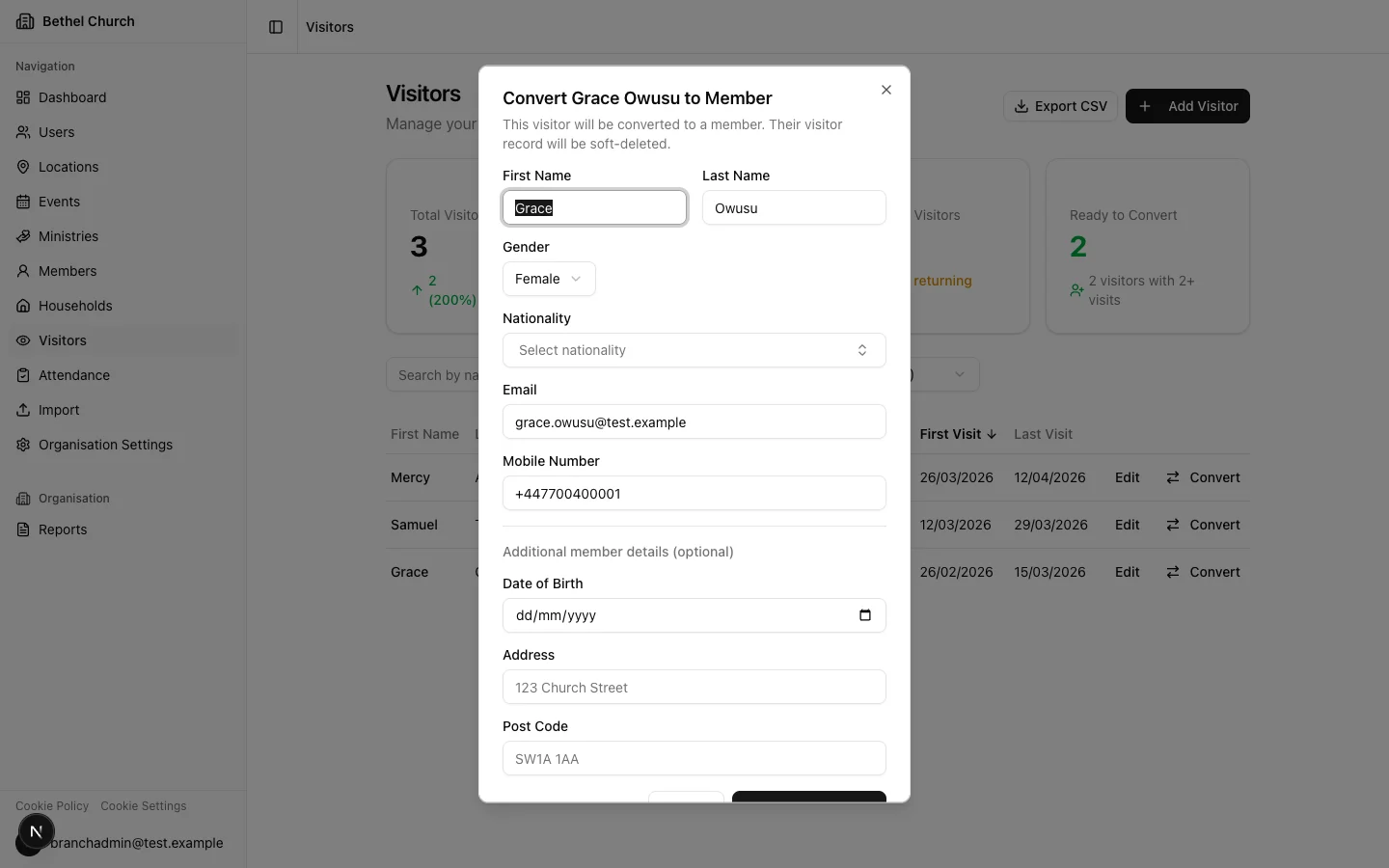
In the visitor row, click Convert. A dialog opens with the visitor’s details pre-filled.
3
Review and add details
Review the pre-filled fields and make any corrections. You can also add Date of Birth, Address, Post Code, and Tags.
4
Complete the conversion
Click Convert to Member. Bethel ChMS creates a new member record with Newcomer status and soft-deletes the visitor record.
The new member stores a link to the original visitor record through the conversion reference. On the member’s dedicated profile page, the Attendance tab includes attendance recorded before conversion as visitor attendance, alongside attendance recorded after conversion as member attendance.Member-compatible tags from the visitor record are carried into the conversion dialog. Visitor-only tags are not added to the new member.