

Who can do this: Org Owner and Org Admin can create, edit, duplicate, and copy branch resources. Only Org Owner can delete a branch. Branch Admins can edit their own branch’s details but cannot create, duplicate, copy, or delete branches.
Creating a new branch
1
Open the Branches page
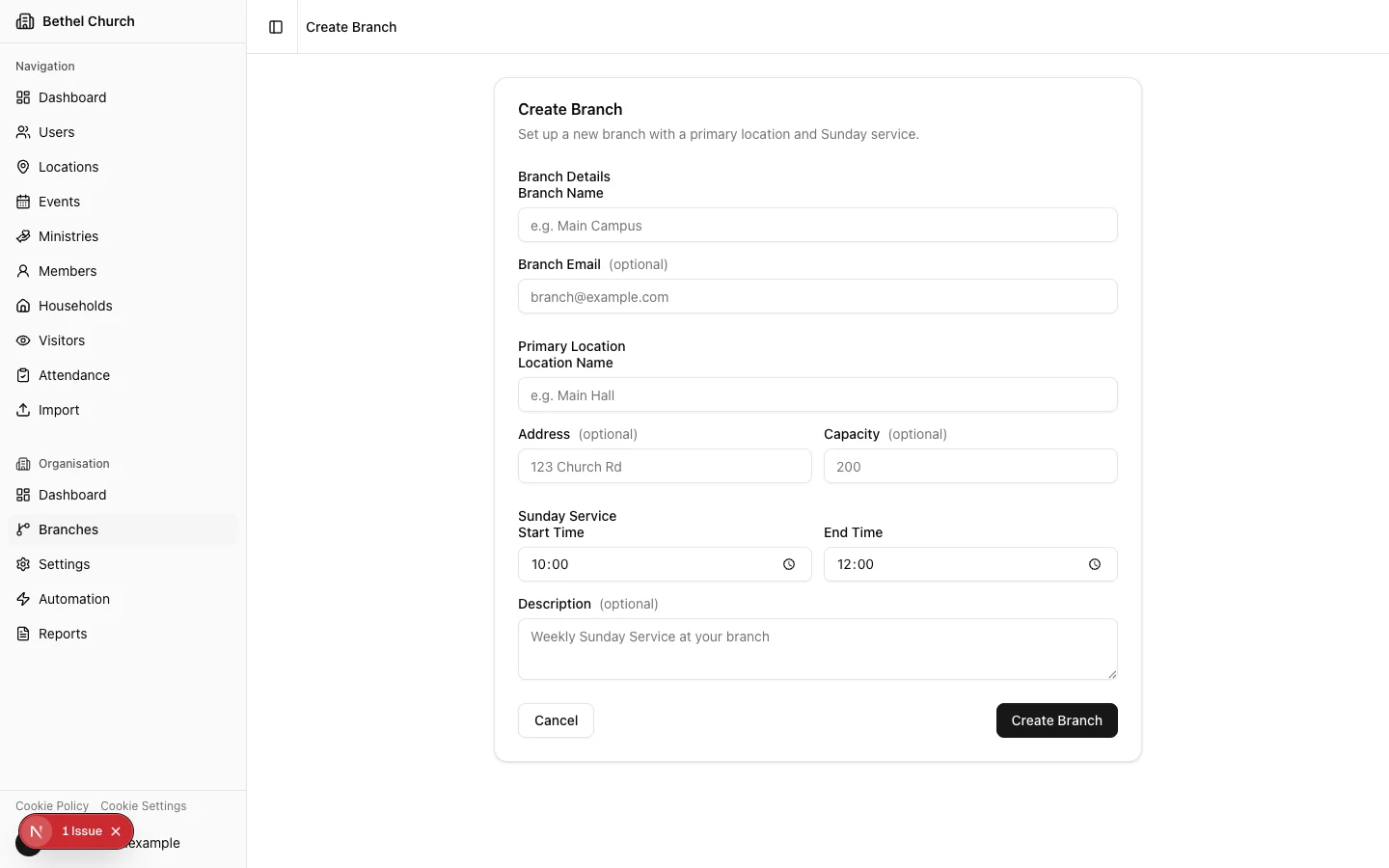
In the Organisation section of the sidebar, click Branches, then click Create Branch.
2
Fill in branch details
Enter the Branch Name. It must be unique within your organisation. You can also enter an optional Branch Email.
3
Fill in the primary location
Enter the Location Name. You can also fill in optional fields: Address and Capacity.
4
Configure Sunday Service
Set the Start Time, End Time, and optional Description for the branch’s Sunday Service.
5
Create the branch
Click Create Branch. Bethel ChMS provisions the branch with its primary location, a Sunday Service event, and 52 weekly occurrences.
If your organisation uses annual billing, Bethel ChMS may show a Confirm branch addition dialog with the estimated prorated charge before it creates the branch.
Duplicating a branch
Duplicating lets you create up to 10 new branches at once, using an existing branch as a template. This is useful when you’re launching multiple new locations with a similar setup.1
Open the duplication wizard
From the Branches list, open the context menu on the branch you want to use as a template and select Duplicate Branch.
2
Choose how many copies
Select the number of branches to create (1 to 10).
3
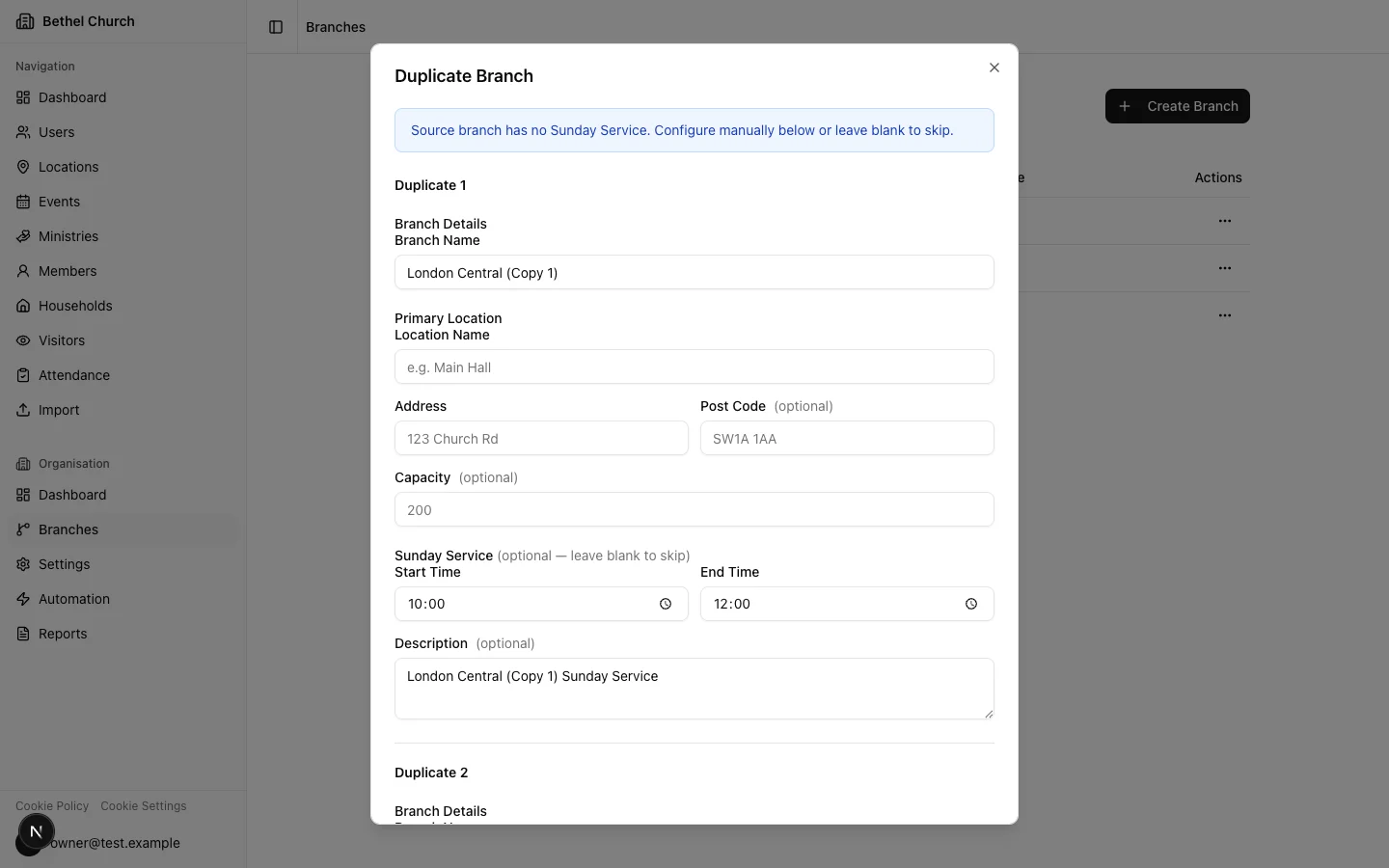
Configure each new branch
For each copy, fill in the Branch name and location details: Location name, Address, and Capacity. You can also configure Sunday Service times and description for each branch.
4
Select additional events to clone
Optionally, select which additional events from the source branch you’d like to clone into the new branches.
5
Review and duplicate
Review the summary and click Duplicate.
6
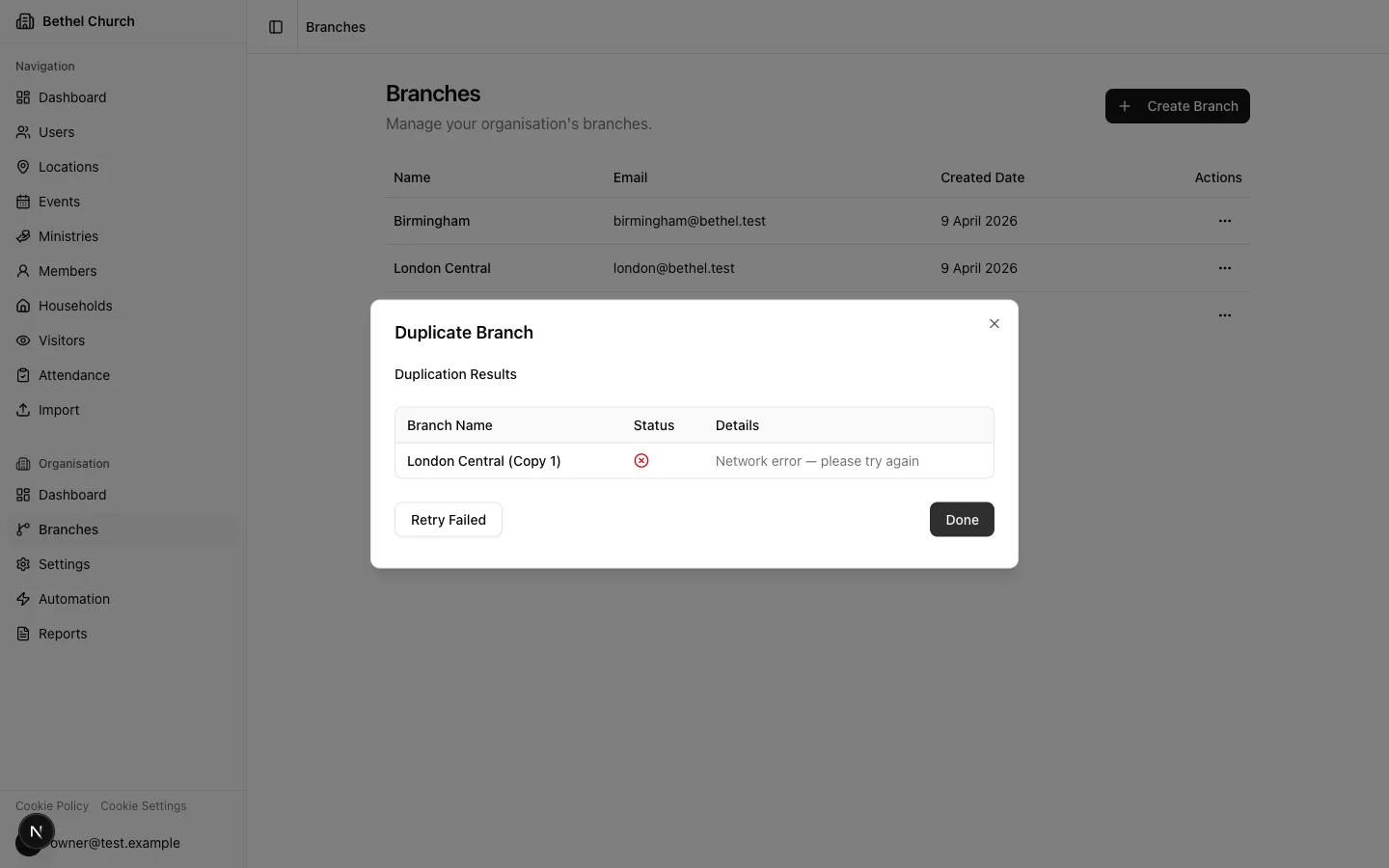
Check the results
The results screen shows the status of each branch (success or failure). If any branches failed to create, use the Retry Failed button to try again.
What gets duplicated
Included: Primary location (with your configured details), Sunday Service event (if configured, with 52 occurrences), any additional events you selected (with their occurrences), and all active ministries (name, description, and status only). Not included: Members, visitors, attendance records, user accounts, or ministry member assignments.Duplicated branches start empty of people. You’ll need to add members, invite users, and assign ministry rosters separately.
Copying resources between branches
Copy events, locations, or ministries from one branch to one or more target branches without duplicating the entire branch.1
Open the copy dialog
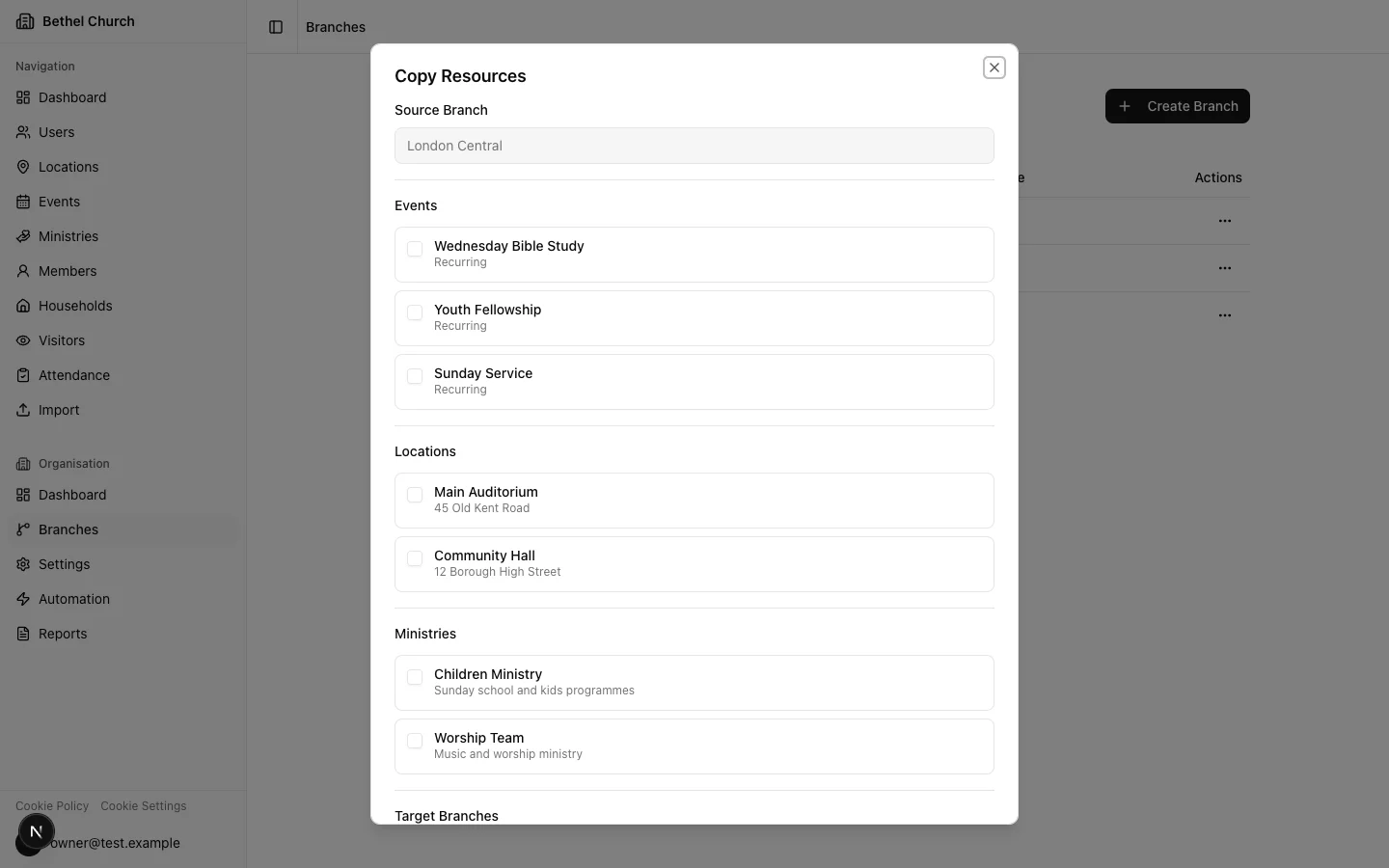
From the Branches list, open the context menu on the source branch and select Copy Resources.
2
Select target branches
Choose the branches you want to copy resources into.
3
Choose which resources to copy
Select the resource types you’d like to copy: events, locations, ministries, or any combination.
4
Review and confirm
Review the summary and confirm to start the copy.
Copied events use the target branch’s primary location. Copied locations are never set as the primary location. Copied ministries include name, description, and status only, with no member assignments.
Editing a branch
You can update a branch’s Name, Email, and group label at any time. The branch name must remain unique within your organisation. Branch Admins can edit their own branch. Org Owners and Org Admins can edit any branch. Org-level users may also see branch-level settings for Gifting Categories and Activity Types on a branch detail page. These settings control which organisation-level categories or activity types are active for that branch.Deleting a branch
Deleting a branch is a soft delete. The branch and all of its associated data are hidden, including members, visitors, events, locations, ministries, and user accounts. You must type the branch name to confirm the deletion. Deleted branches can be recovered within 30 days before the data is permanently removed. You cannot delete your organisation’s only branch. Create another branch first if you need to remove the original one.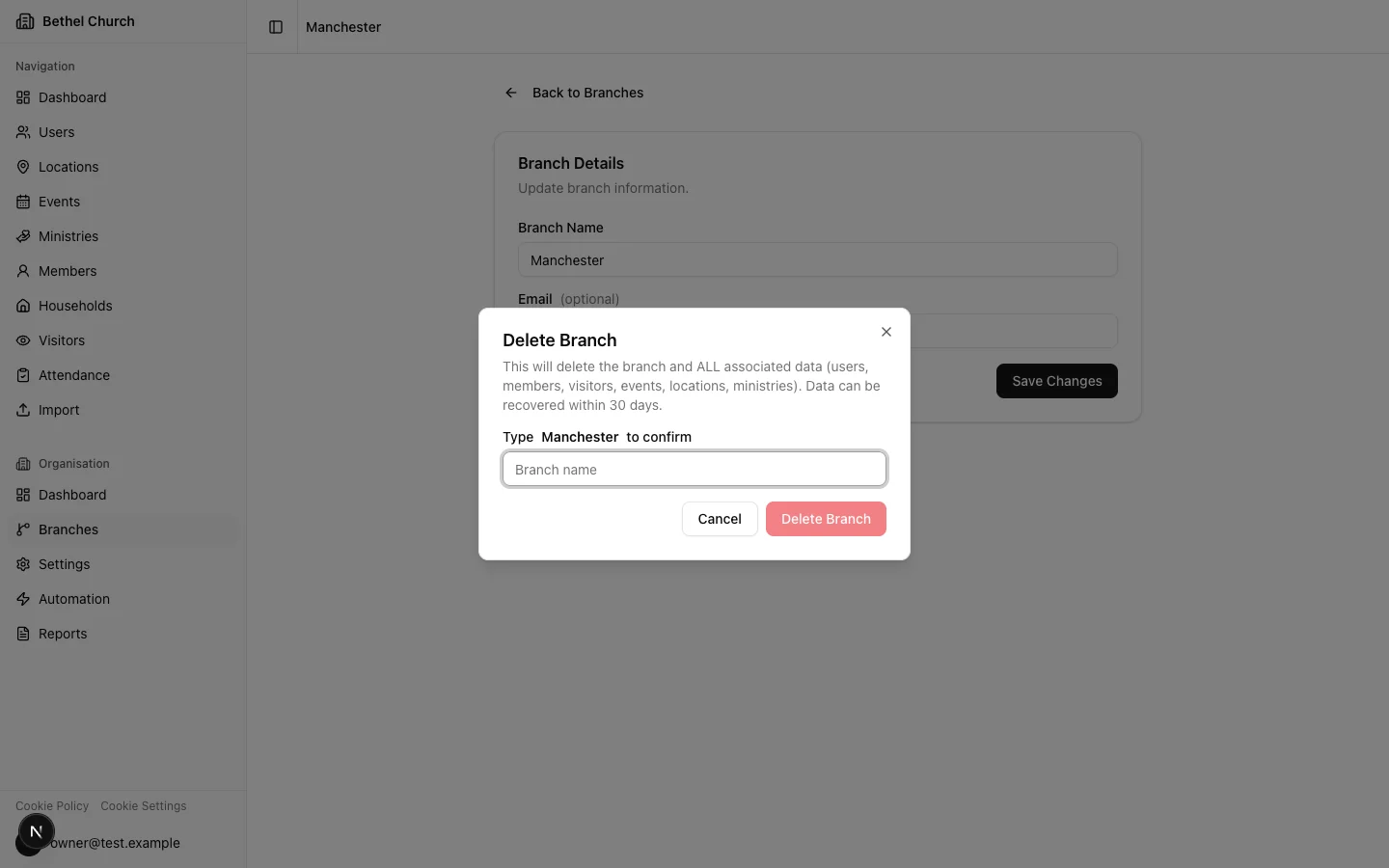
Maximum branches
Your organisation has a branch limit. You cannot create or duplicate branches beyond this limit.Contact BethelWare Software Ltd if you need to increase your branch limit.